


 45
45
Two-Factor Authentication can be enabled for clinics that are wanting an additional layer of security when logging into Artisan. If two-factor authentication is not enabled for your clinic, you can reach out to [email protected] for assistance.
Navigation
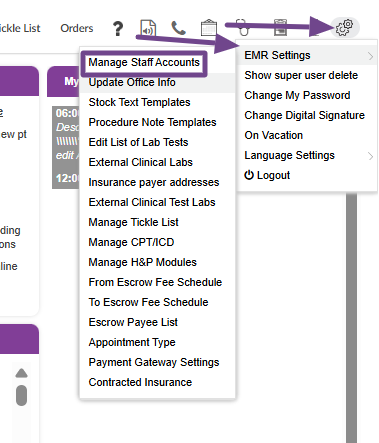
Select System Settings (gears icon)>EMR Settings>Manage Staff Accounts
Enabling Two-Factor Authentication
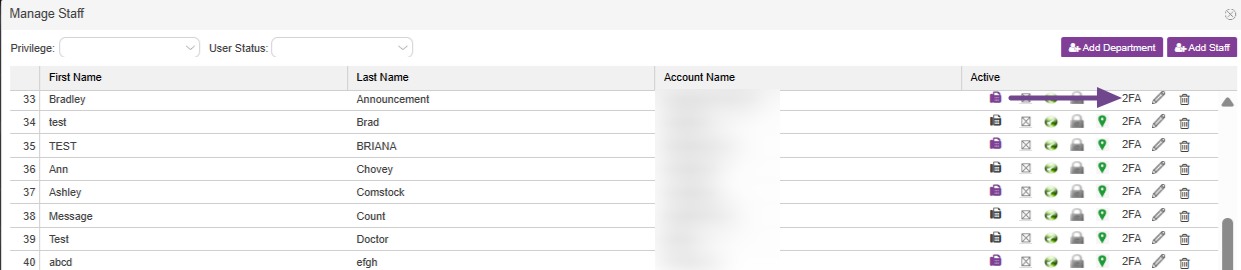
To manually trigger an invite to the user, select the 2FA link. Please note, the invitation will automatically be sent to the user upon account creation. This will only need to be used to resend the invite.
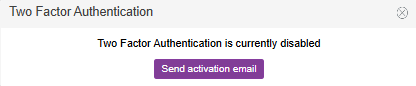
You'll receive the below validation screen to send the activation email. Select Send activation email.
Once the activation email is sent, the user will receive the email with a link that they will need to click on.
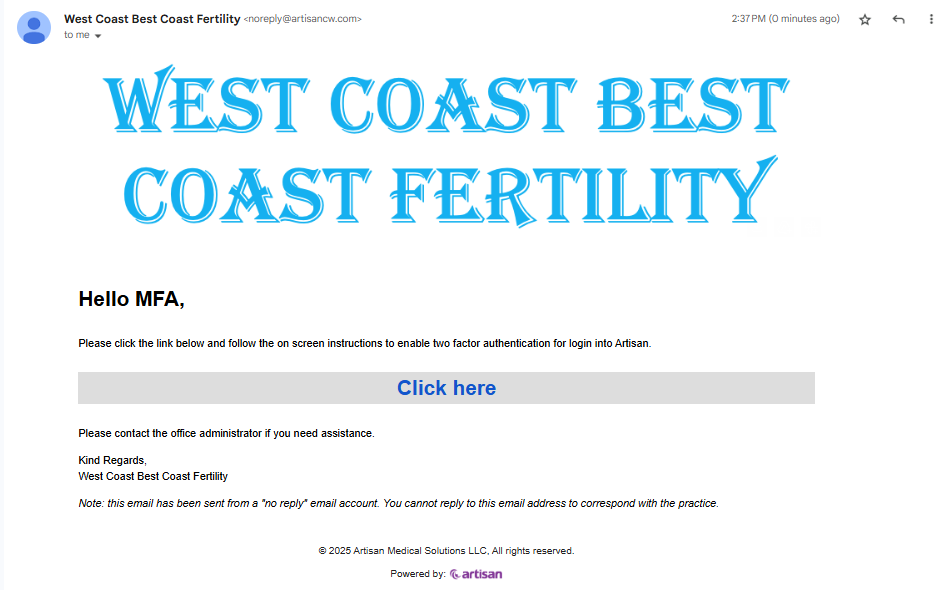
After the Click Here link is selected, they will be prompted to enter their username and then select Next.
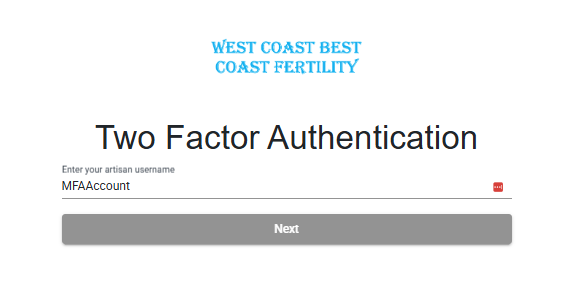
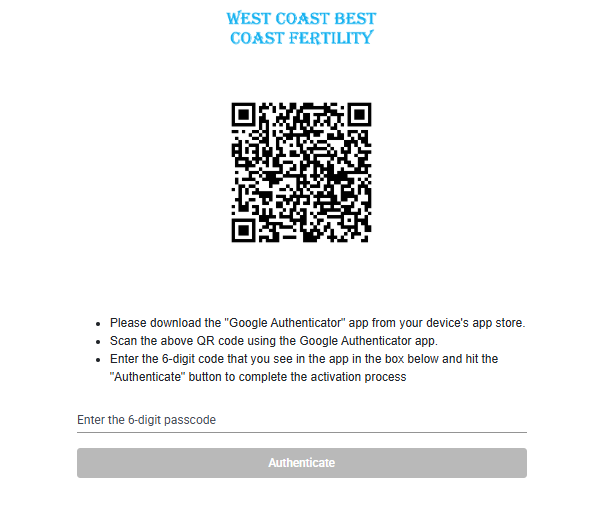
The user will then be prompted to download the Google Authenticator app on a mobile device and scan the provided QR code using the authenticator app. You'll then enter the 6 digit code in the app in the designated area and select Authenticate. You'll then get a message that two factor authentication has been set up.
Once the 2FA is enabled, the 2FA link in Manage Staff Accounts will show in green.

Logging Into Artisan with Two-Factor Authentication
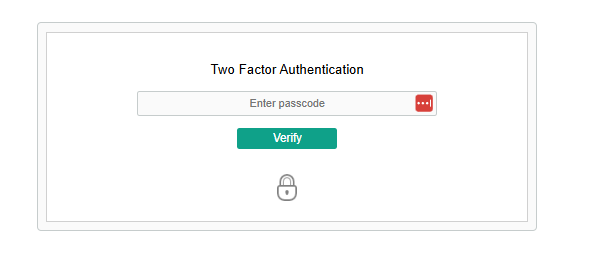
Users that have 2FA enabled will login as usual with their Username and Password. They will then be prompted to enter the passcode that is currently showing on the Authenticator app. Once entered, the user will click Verify and be logged in.
**All manuals are compliant with HIPAA regulations. No patient information has been released. All screenshots above were taken from a test clinic with fake patient and user information.

