


 56
56
Artisan features a secure instant messaging (IM) system. The IM portal will deliver messages to the patient's Artisan smartphone app or to their secure web-based Patient Portal.
Enable IM During Office Setup
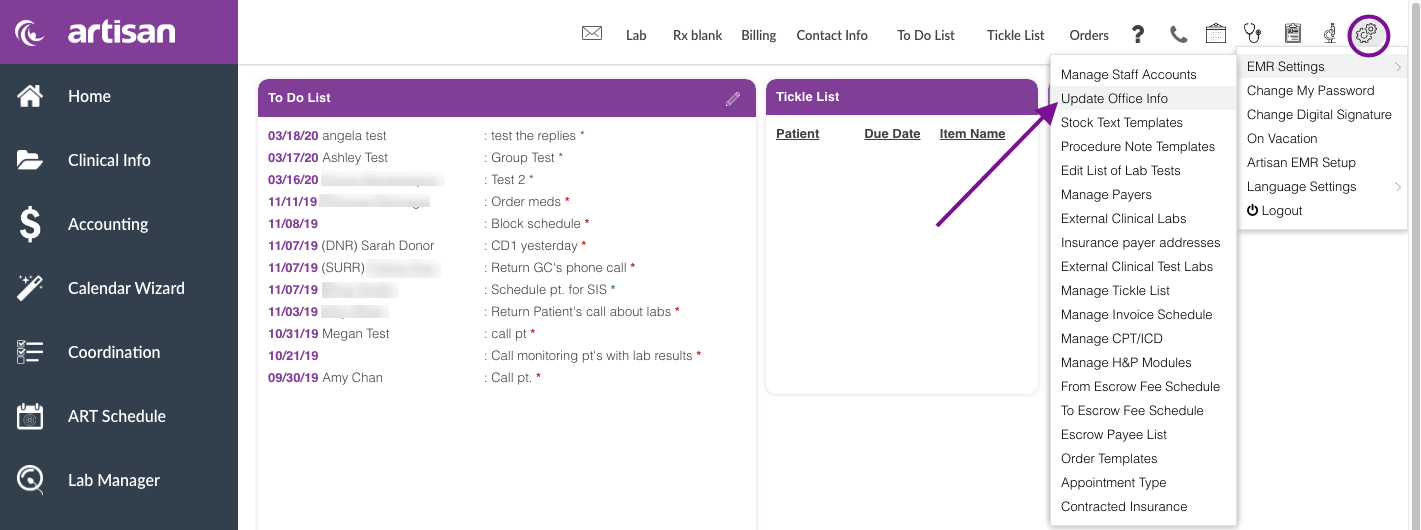
Click on the Gear icon, then EMR Settings, then Update Office Info.
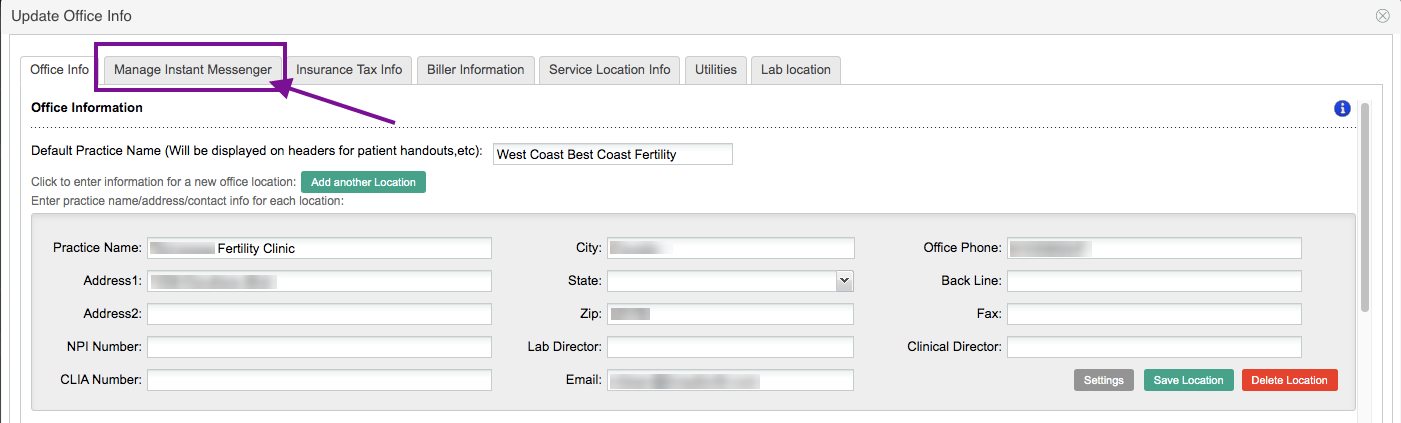
Select the Manage Instant Messenger tab.
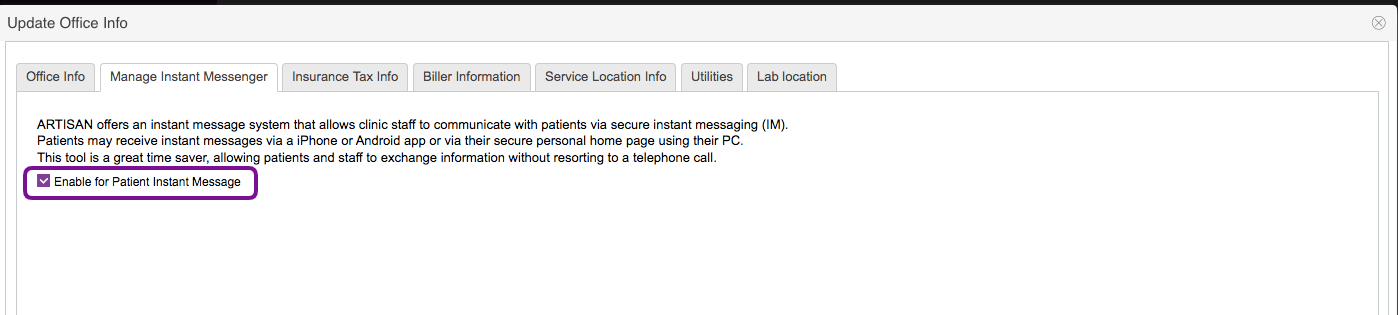
Patient Instant Messenger in enabled by default. Clear this check box if you do not want to use instant messaging under any circumstance.
Set IM Status for Individual Users
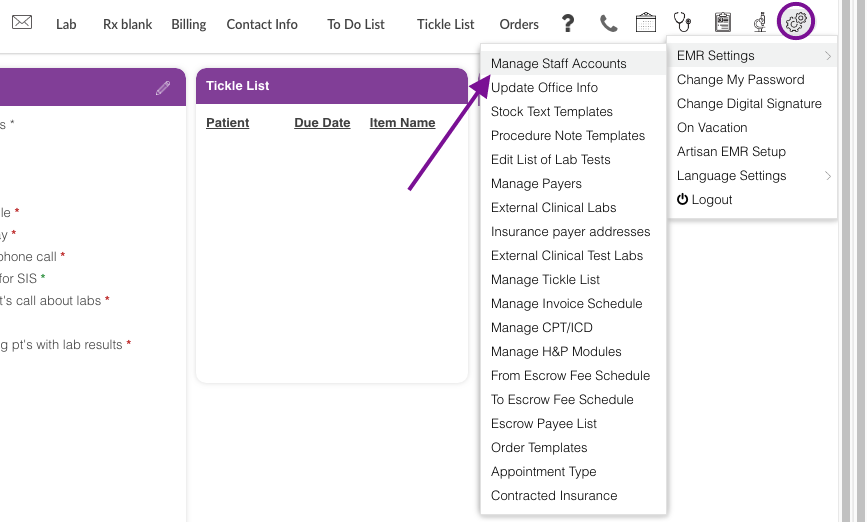
To disable IM for an individual user, click on the Gear icon, then EMR Settings, then click the Manage Staff Accounts.

Click the Pencil icon to open the individual user's setting.

Clear the Enable for Patient Instant Message check box to disable IM for this user. This will remove the individual from the list of staff members in the patient portal.

