


 43
43
You may create an account for your answering service to access Artisan. This account allows the service to add or edit existing appointments to the Appointment Calendar or send patients a link to the Prospective Patient system.
Create a User Account for the Answering Service

Create a user account as you would for any new staff member.
Set the Privilege to "Scheduler".
Answering Service Schedules Appointments & Sets Up Prospective Patient

Access to Artisan is limited to the Appointment Calendar and Prospective Patient feature.
Users will simply click the icon to open the tool for either the Appointments Calendar or Prospective Patient.
Appointments Calendar
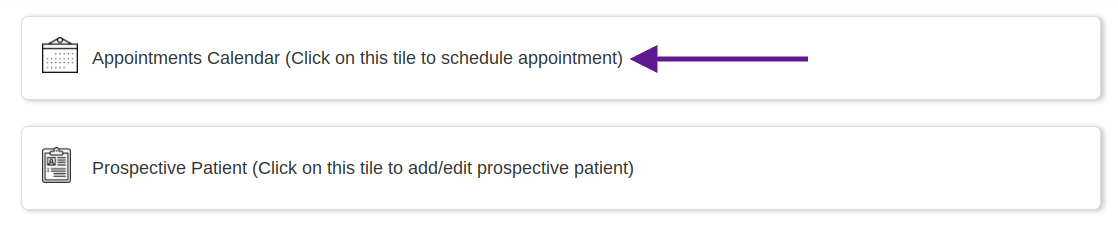
Click on the Appointments Calendar from the homepage.
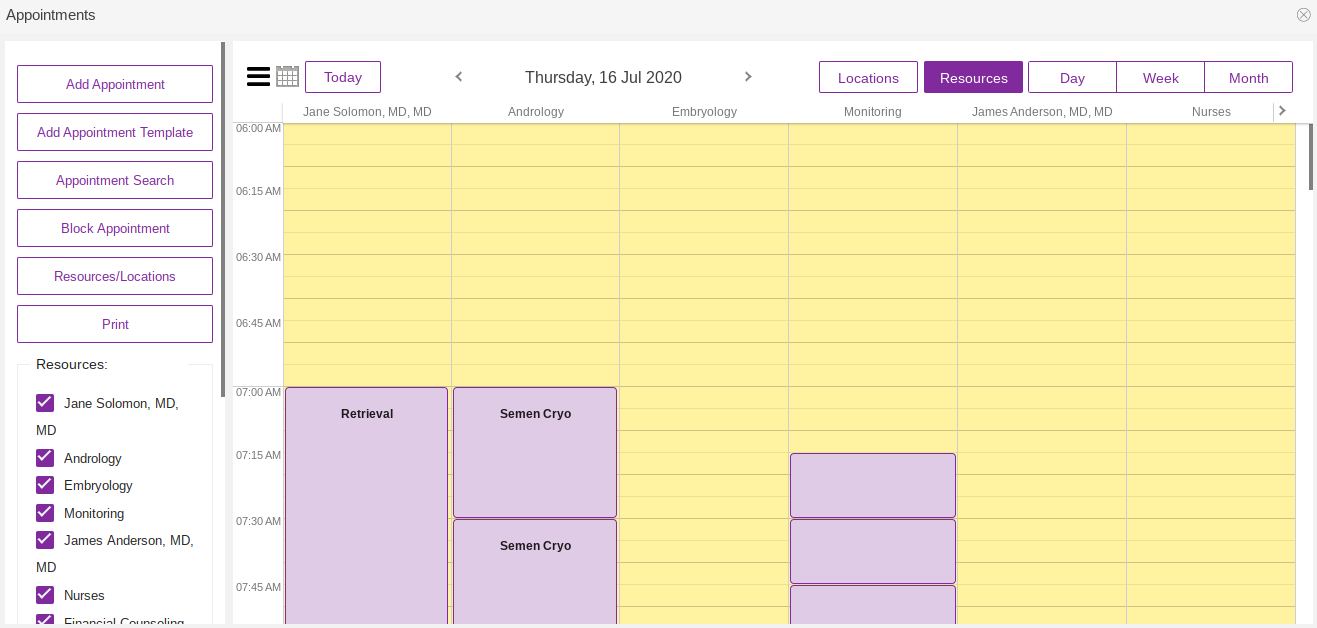
When the Appointments calendar is opened, it will default to the resources view. For more information on how to use the Appointments Calendar, go to How to Use the Appointment Calendar.
Prospective Patient
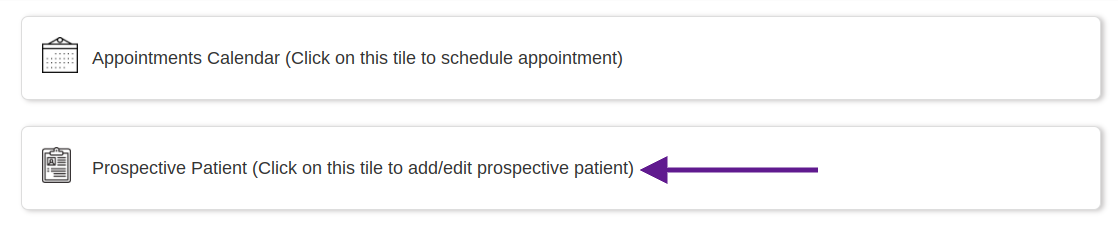
Click on the Prospective Patient tile from the homepage.

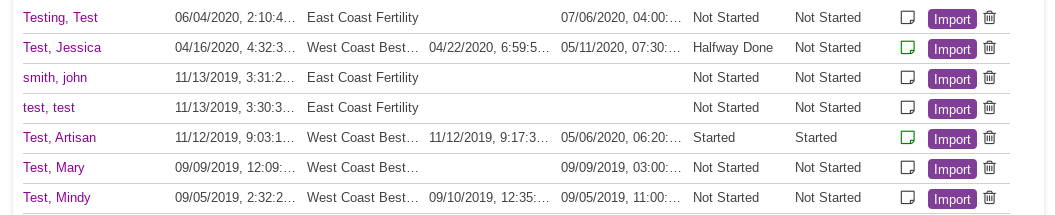
The homepage of the prospective patient portal will open. The page icon in the top right corner of the screen will allow the user to add a prospective patient directly to the system. To learn more about Prospective Patient and how to add a prospective patient directly to Artisan, please go to How to Add a Prospective Patient.
**All manuals are compliant with HIPPA regulations. No patient information has been released. All screenshots above were taken from a test clinic with fake patient information.

