


 116
116
Patient handout is a useful tool for you to communicate with your patients through the patient portal. Using patient handouts allows you to send instructional documents to your patient.
Navigation
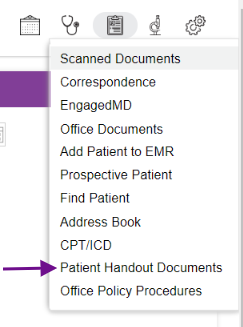
Click on the admin Tool icon in the right-hand corner and select Patient Handout Documents.
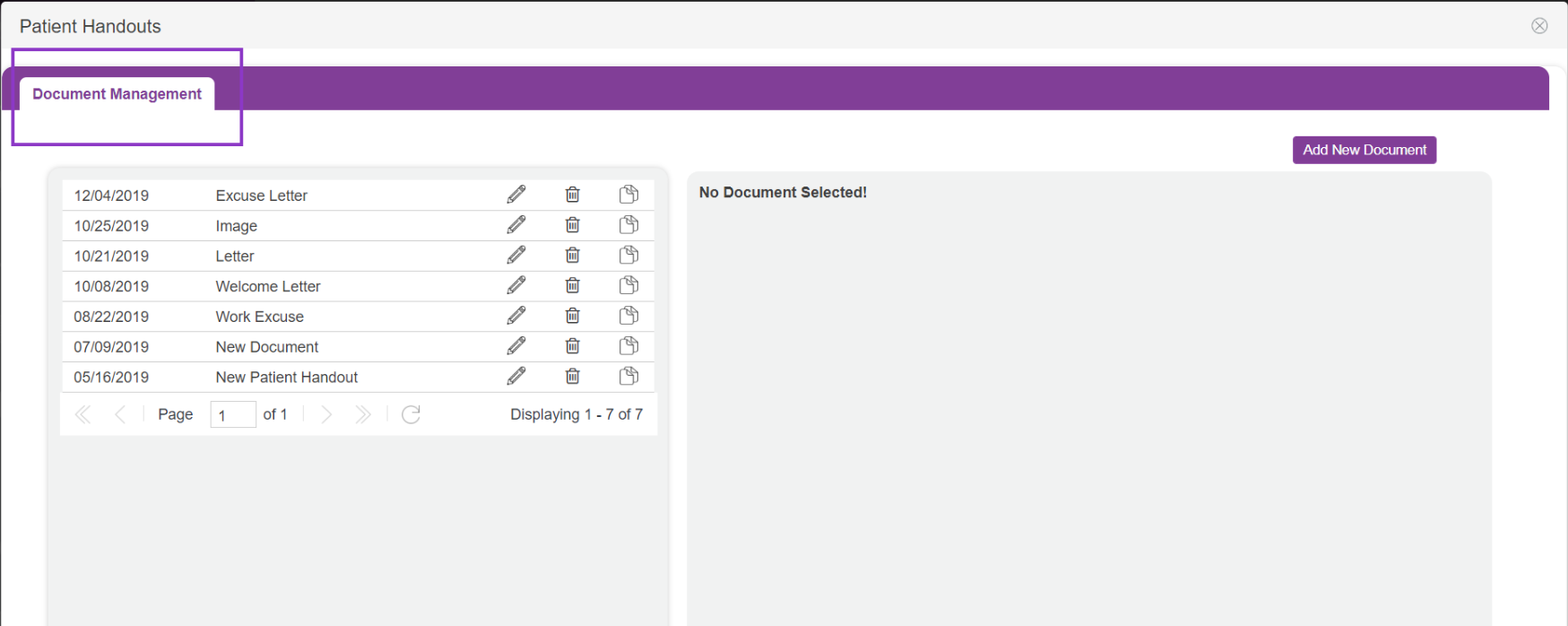
In Document Management, all the existing handouts will live.
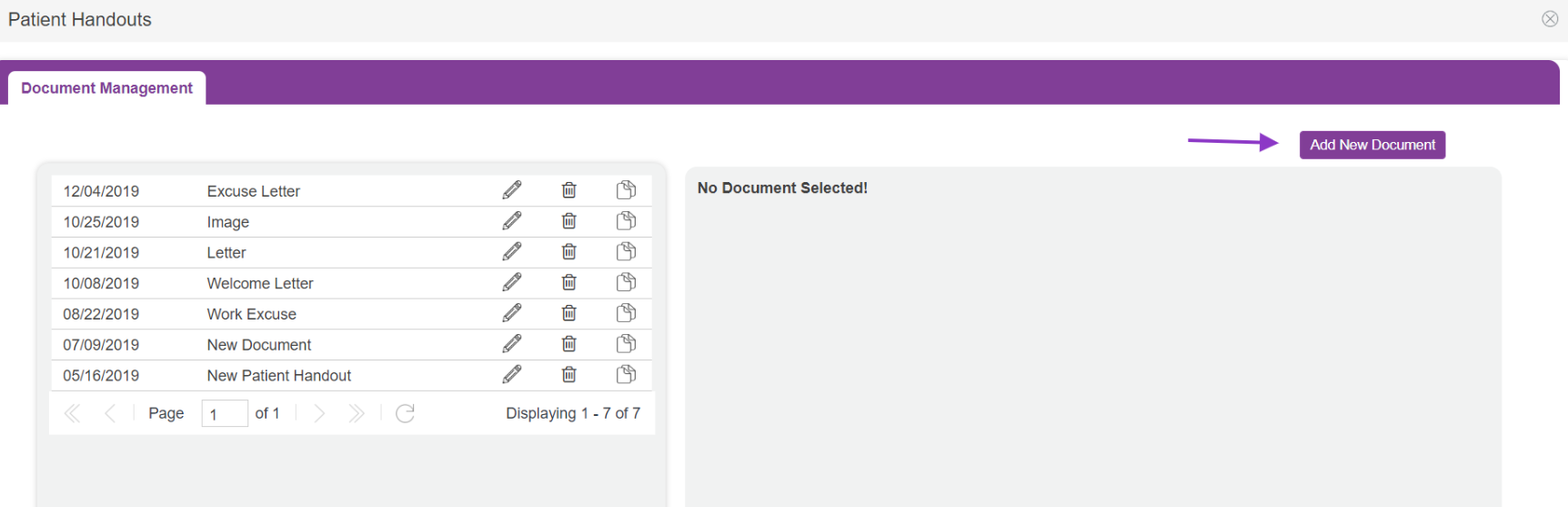
To add a new document to the patient handouts select the Add New Document in purple.
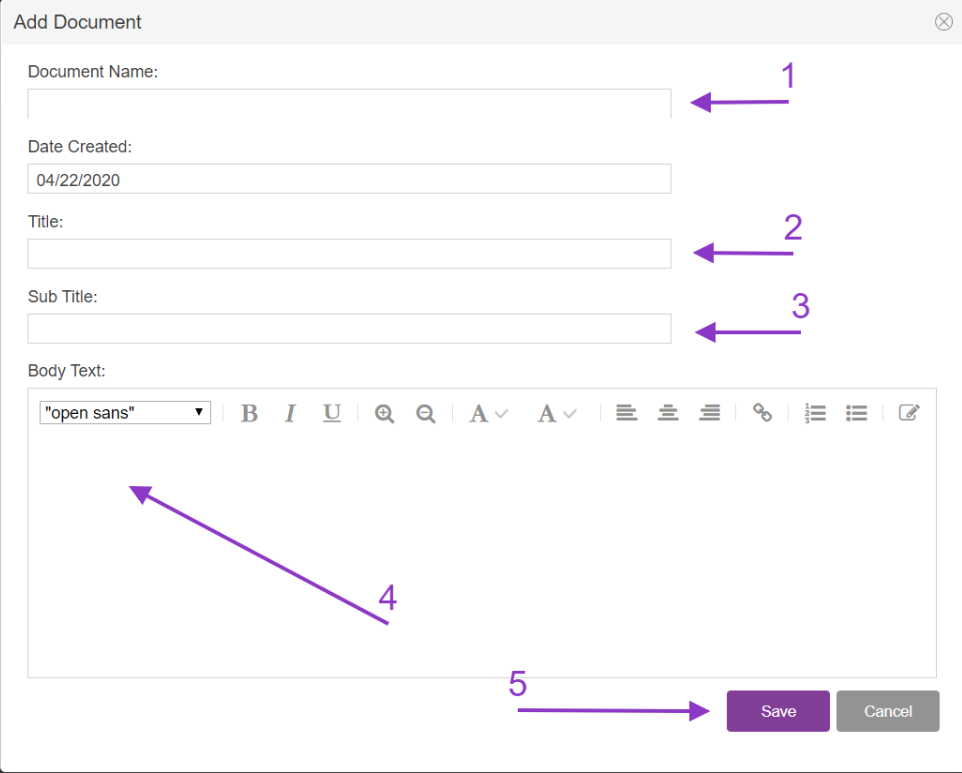
Once you select Add new Document the pop-up window will display for you to enter in the new information for the document that you are creating.
1. Create Document name
2. Add the Title of the Doc
3. Add a Sub Title if applicable
4. Type/ paste in your new document body
5. Save

You are also able to edit the format of the left, using bold, italics, font size, color, and other editing options.
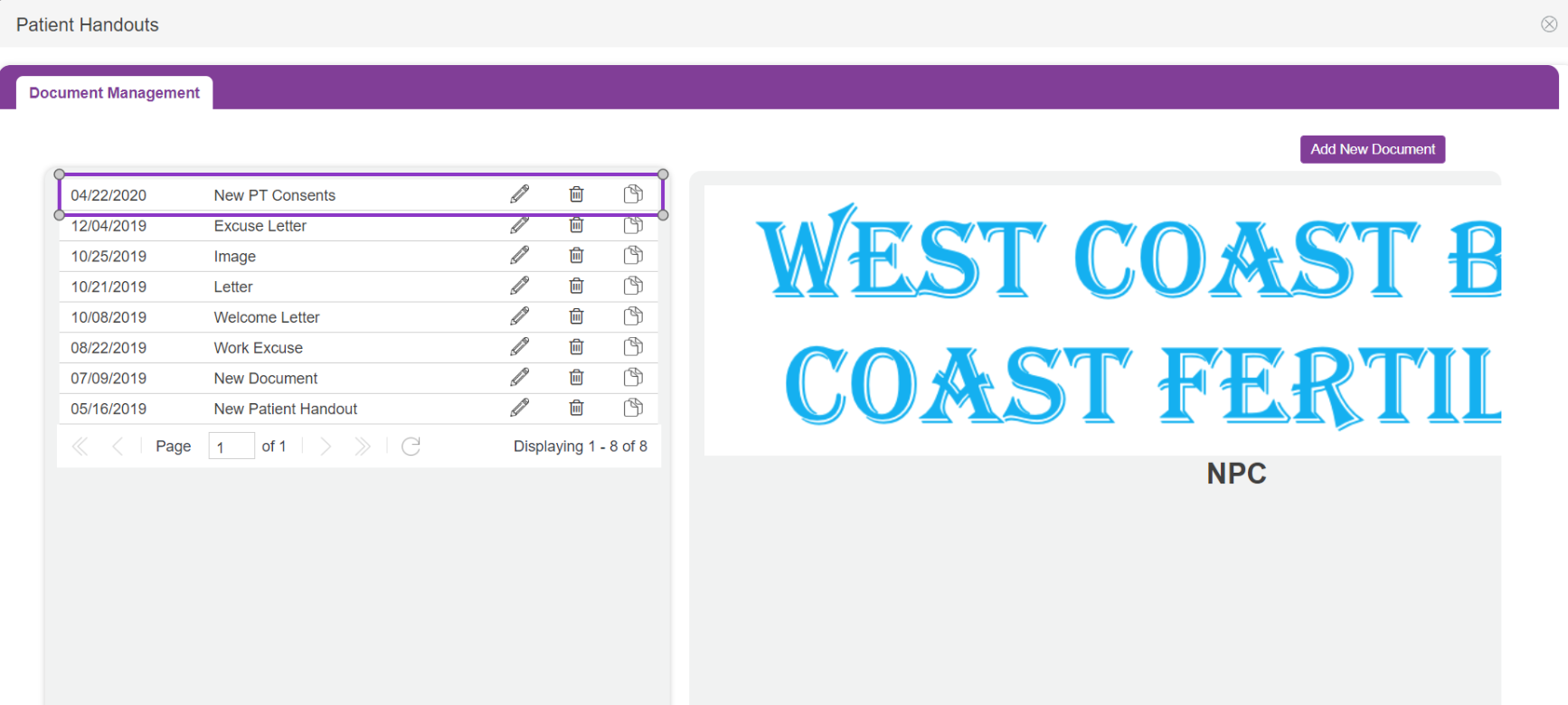
Once you select save the new document will live under the Document Management tab. A preview with your Logo will appear on the right.
Edit Existing Handout
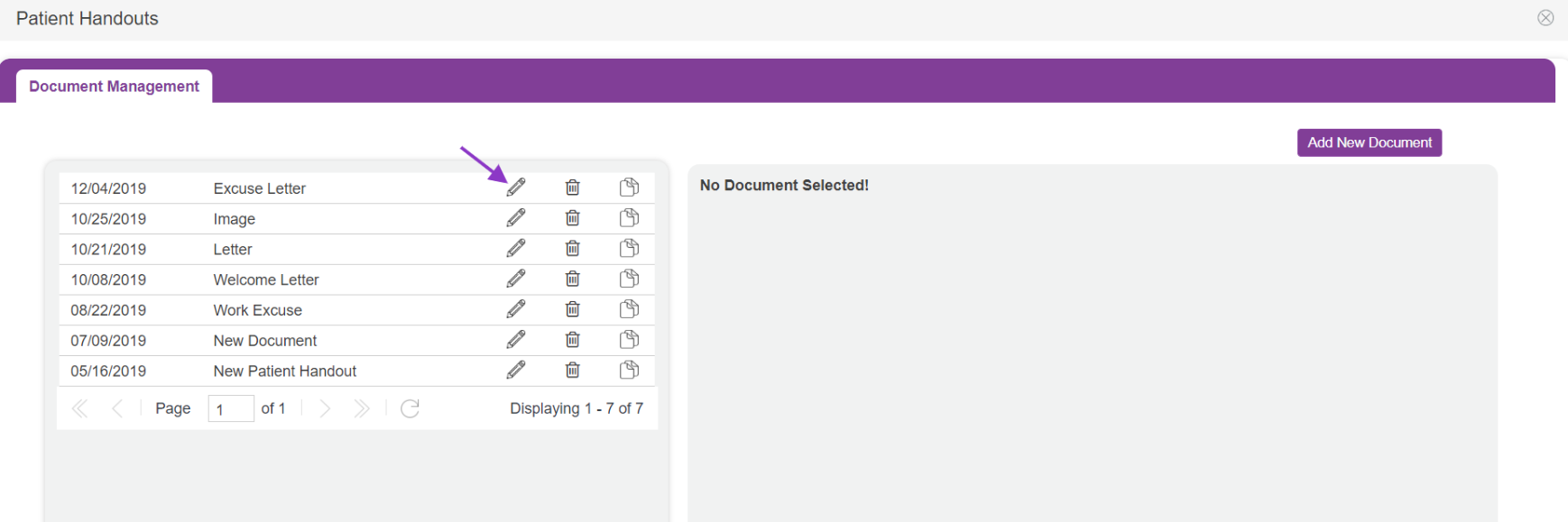
You are able to edit an existing document by selecting the pencil icon.
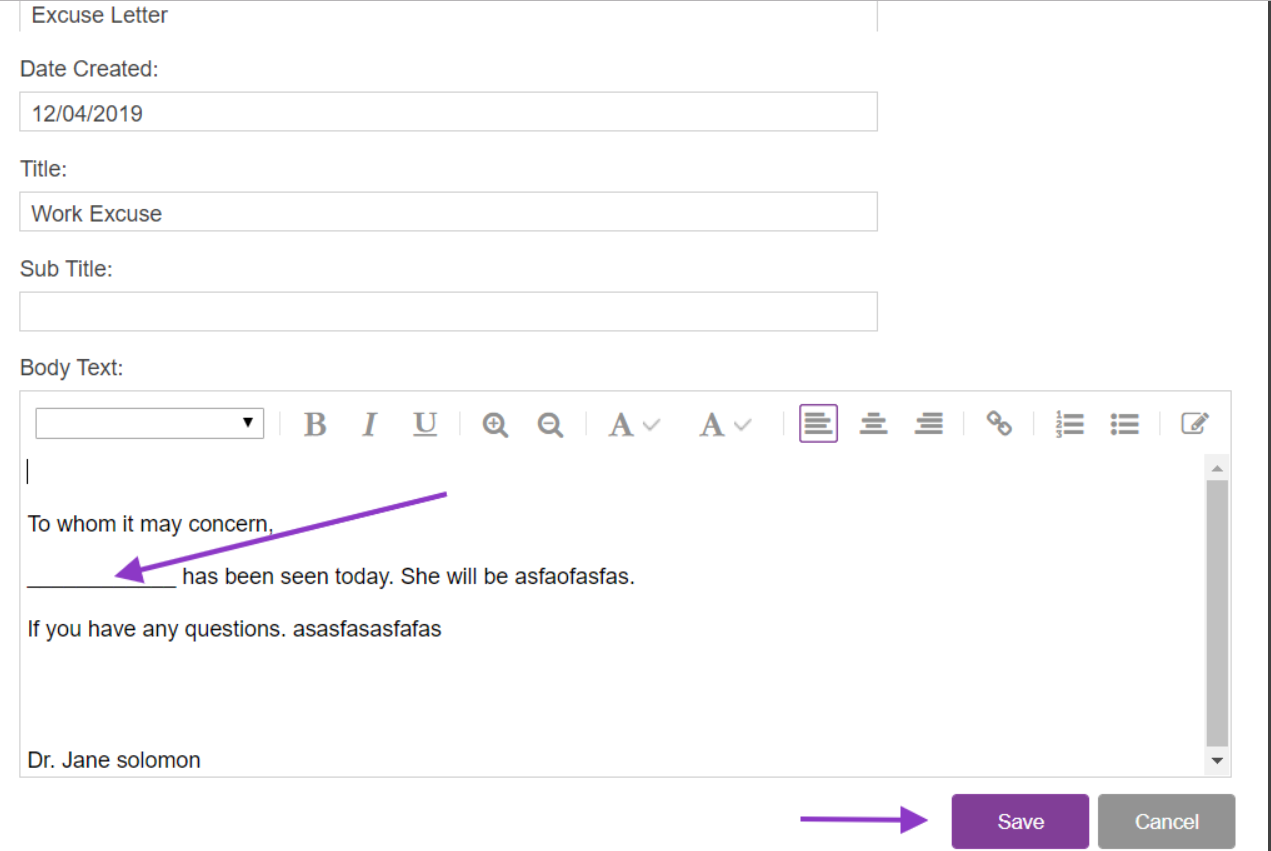
Once the pencil icon has been selected the document will open and allow you to make edits. Place your cursor where you need the edits to be made and edit the document as needed. Once all edits have been made select commit to save the new information.
Delete Handout
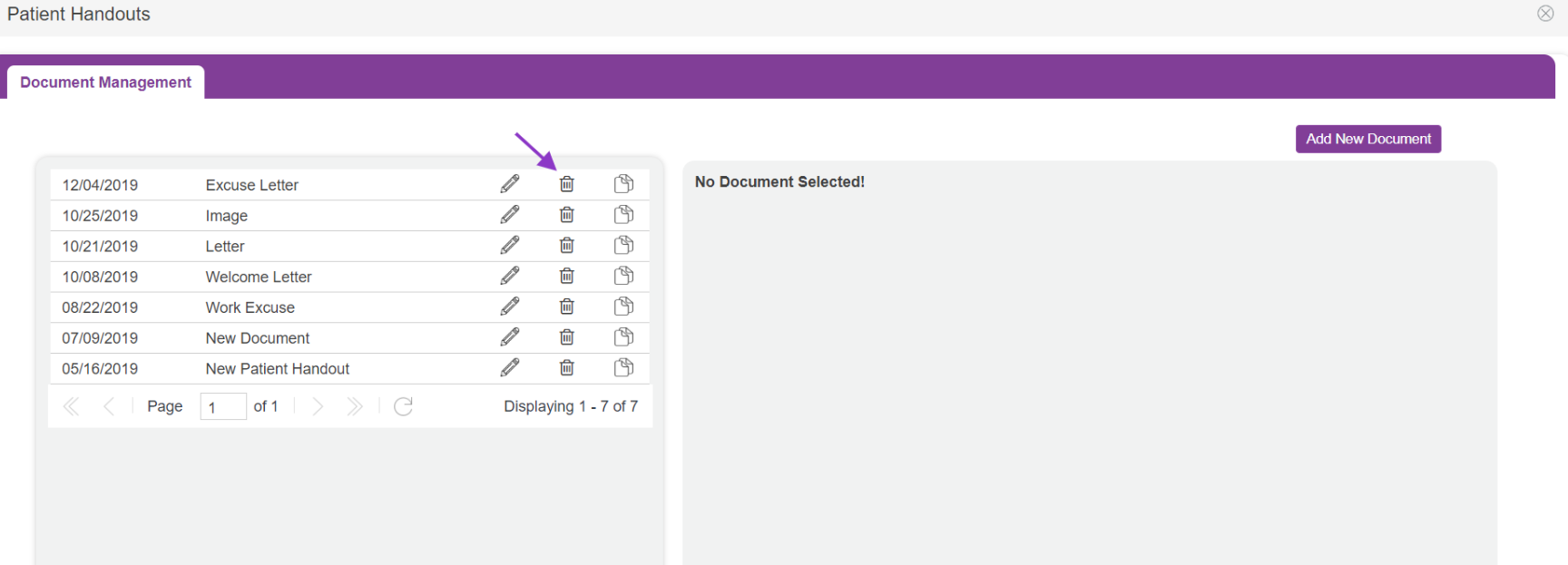
To delete a handout select the trash icon
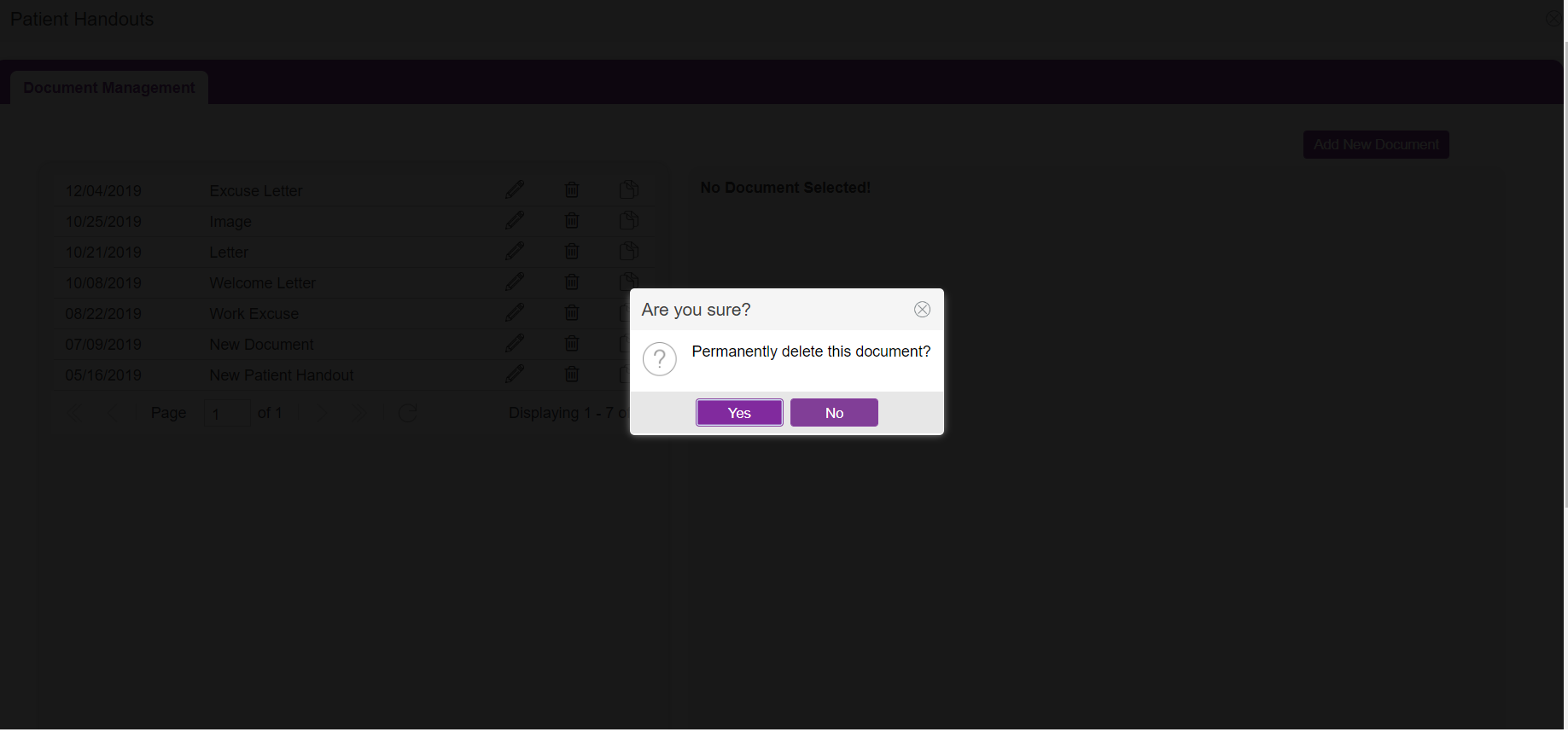
After selecting the trash can icon a verification window will pop up asking to verify the deletion.

