


 55
55
The Correspondence tool links with your Address Book as a place to compose letters and faxes to professionals and patients.
Navigation
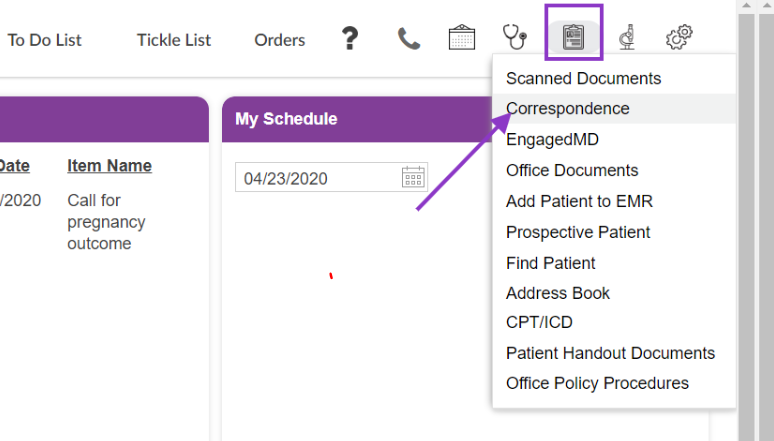
From a patient's chart, go to the Admin Tools icon and select Correspondence.

1. The Correspondence lists all of the patient's prior correspondence.
2. It also offers tools to write new letters to patients or professionals.
Make your selection by clicking +Compose Letter to Professionals or +Compose Letter to Patient
Compose Letter to Professionals or Patients
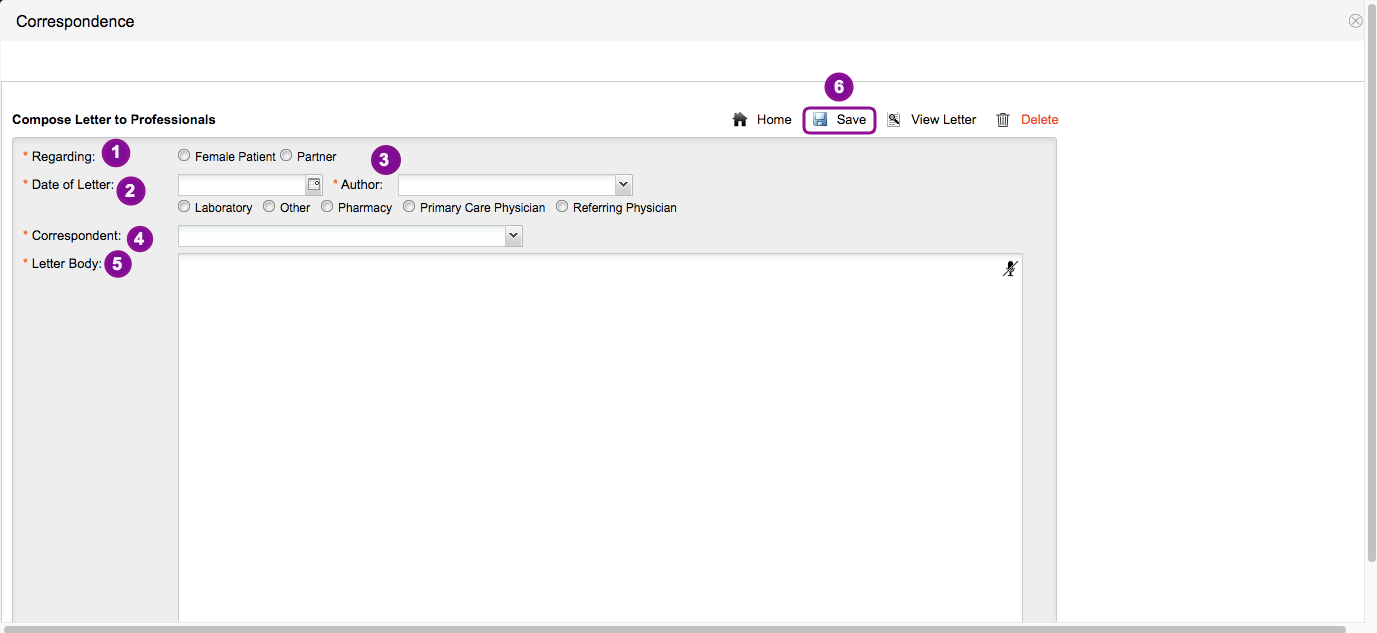
- Regarding: Select either Patient or Parter
- Select the Date of Letter
- Select the Author by clicking the dropdown icon, then indicate the recipient type of the letter (Laboratory, Pharmacy, PCP, Referring Physician or Other)
- Select the actual recipient under Correspondent (this list will pull from your Address Book)
- Write the body of your letter
- Save the letter.

You may choose to dictate the body of the letter, by selecting the dictation tool. Once you have added the body of the letter and saved, click View Letter.

You may then edit or print the letter.
Use the same steps to compose a letter to a patient, simply select Compose Letter to Patient.
**All manuals are compliant with HIPAA regulations. No patient information has been released. All screenshots above were taken from a test clinic with fake patient information.

