


 126
126
Use the Address Book to store addresses and phone numbers for referring physicians, labs, pharmacies, and other professional contacts.
The Address Book provides quick access to contact information throughout the EMR.
Additionally, Address Book information is used by the Correspondence tool to populate addresses and fax numbers in letters and faxes.
Navigation
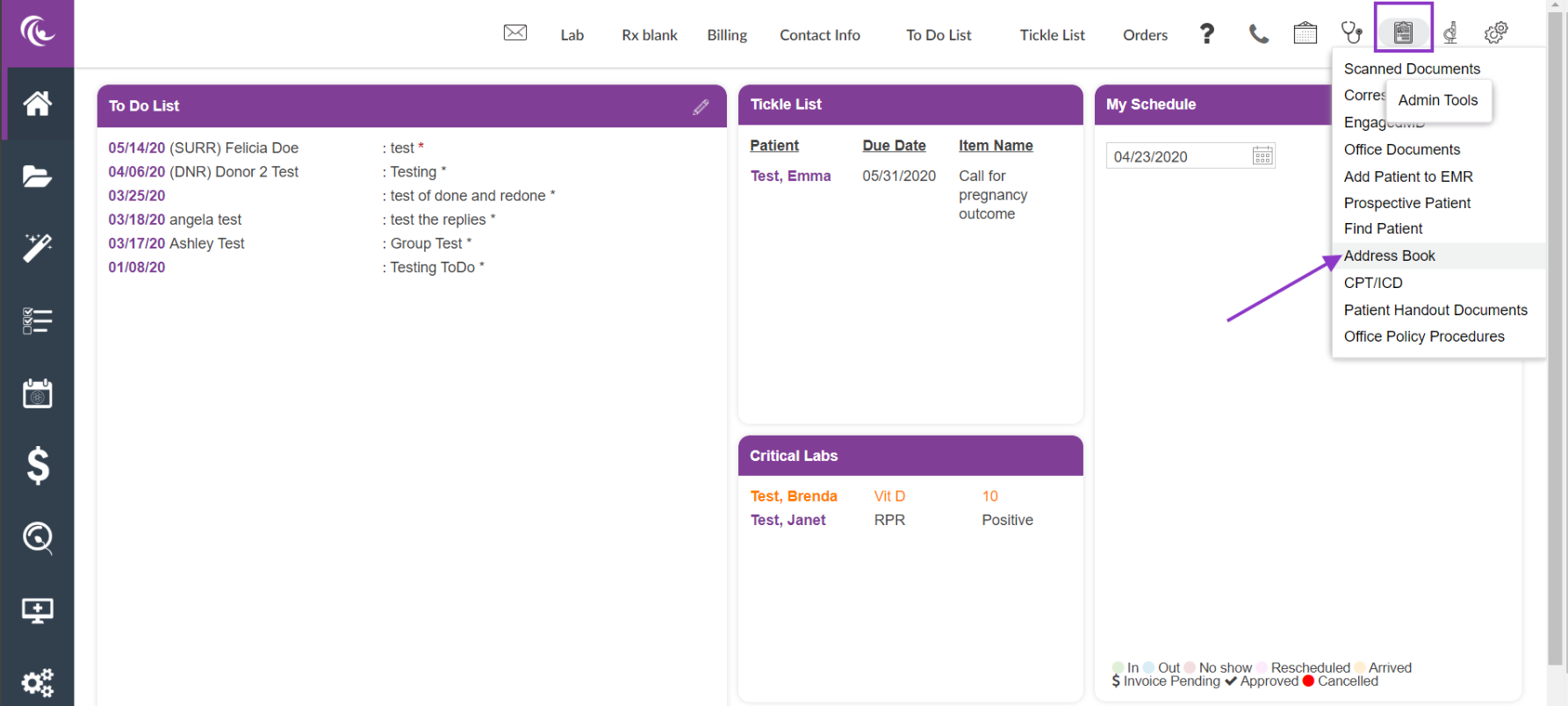
Click on the Admin Tools icon (clip board) and select Address Book.

- Use the pull-down list to select the appropriate group you wish to view.
- Use the pencil icon to edit an entry.
- Click Add New Address, to add a new entry.
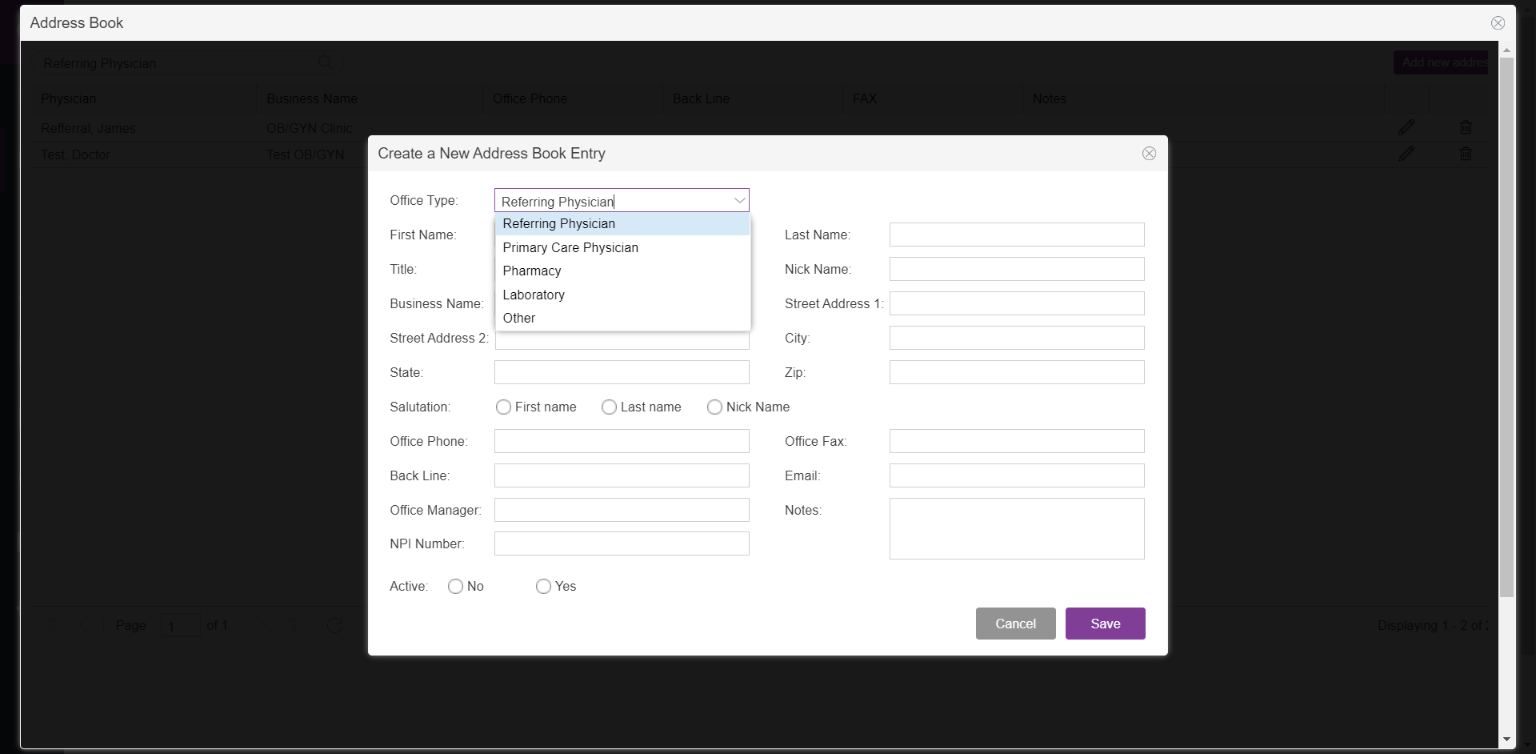
To Create a New Address Book Entry complete the fields. Make sure to select from the drop down the type of Entry you are creating.
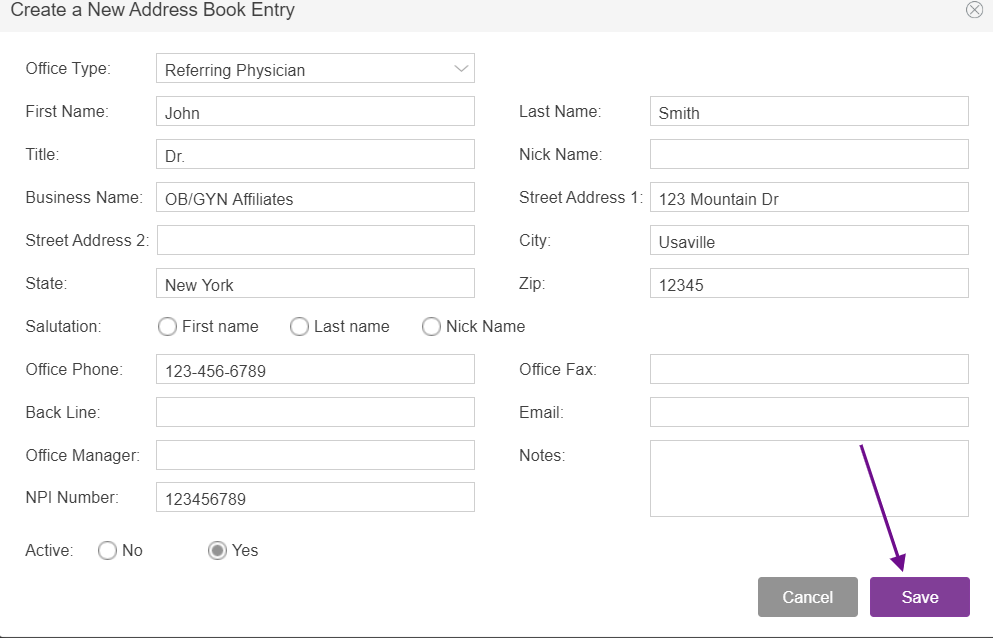
Click Save when finished to commit the new entry into the Address Book.
Delete Line Item
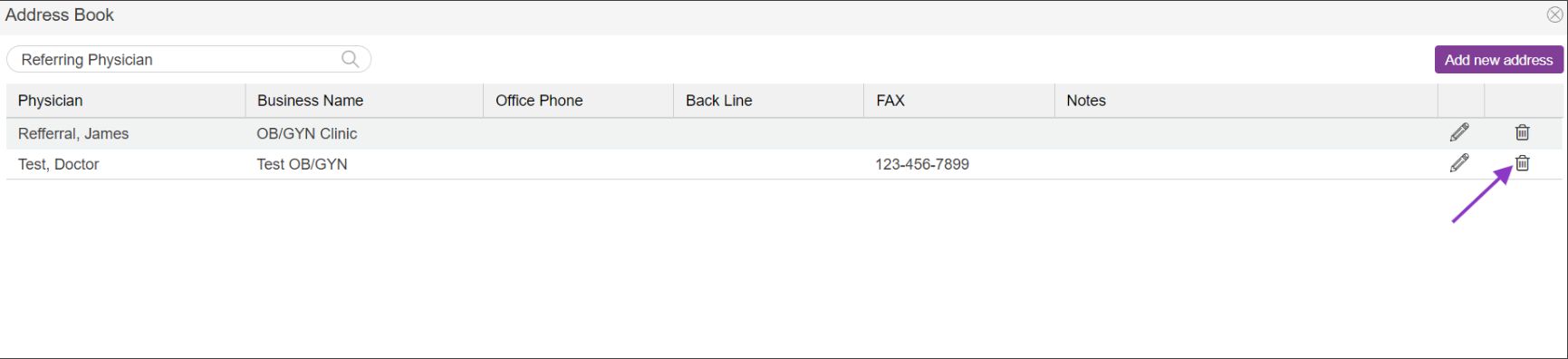
Select the trash can icon to delete the line item on the address.
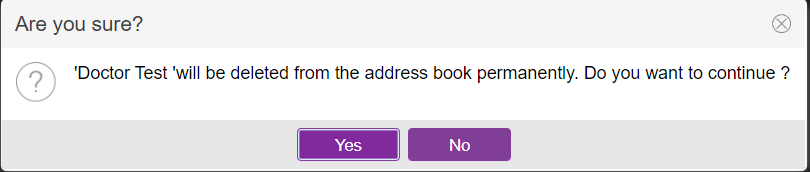
A verification window will display asking you to confirm your request.
**All manuals are compliant with HIPAA regulations. No patient information has been released. All screenshots above were taken from a test clinic with fake patient information.

