


There are many methods of looking up a patient inside of Artisan. To most quickly find a patient with limited search information, use the following tool.
Navigation

You are able to search for a patient a few different ways within the clinical info tool. Click the person icon to open the options:
- Patient name- Search by patient last name, first name
- Partner name- Search by partner last name, first name
- Artisan ID- Search by the full patient account or by the last 7 digits of the patients account
- Custom ID- Search by custom ID 1 or custom ID 2 if applicable to the patient
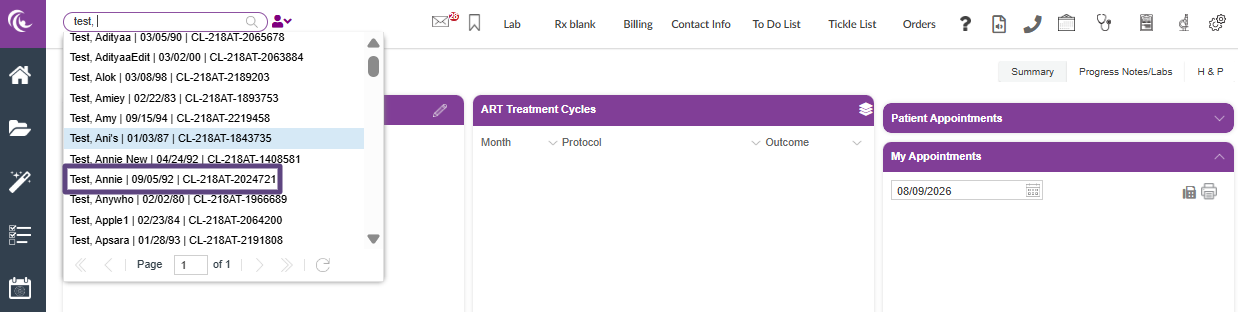
To search for a patient, type the patient data in the search toolbar. In the above example, we are performing a search by the patient name. When searching by patient or partner name, first type in the last name, comma and space, then the first name. For example, we have searched for "Test, Annie". The system will provide you with a list of patients that has a similar last name, corresponding first name, date of birth, and chart ID number. Select the appropriate patient that you wish to search for.
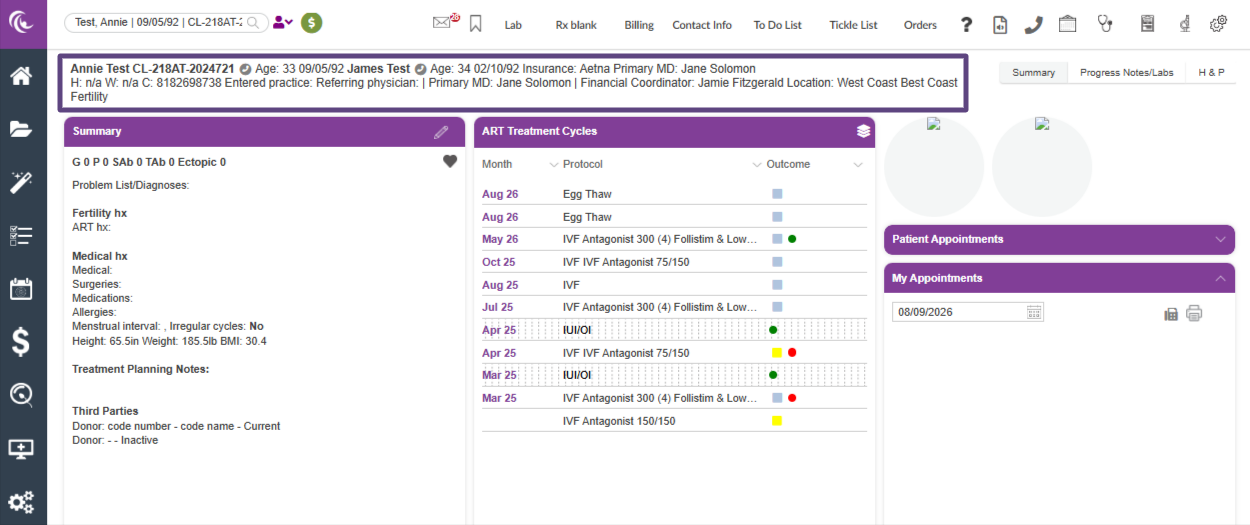
You are now able to view and manage the patient's chart.
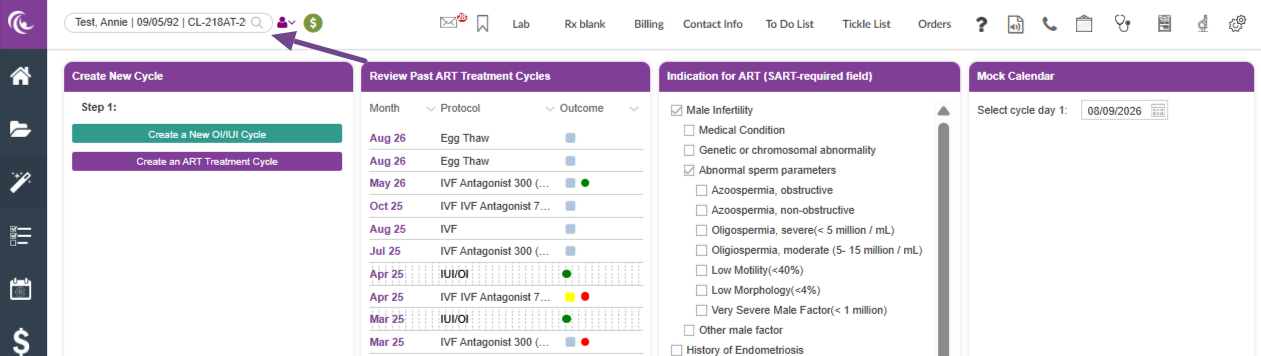
Search tool view within the calendar wizard.
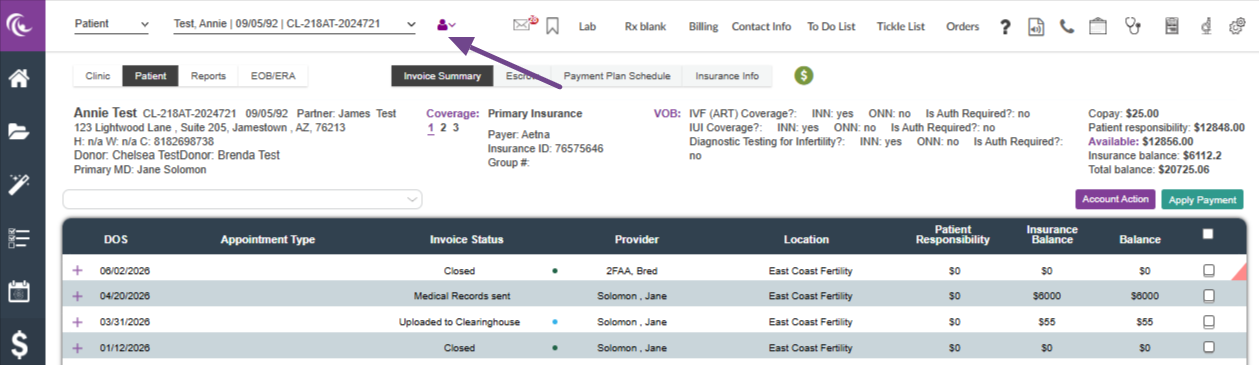
Search tool view in the Accounting tool. Click the patient tab then enter the patient's last name in the search feature section.

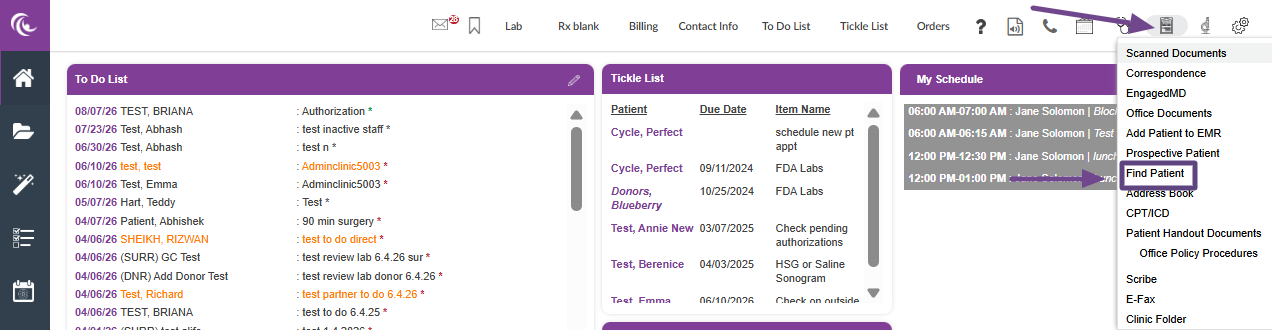
To use the Find Patient tool, select the Admin Tools and choose Find Patient.
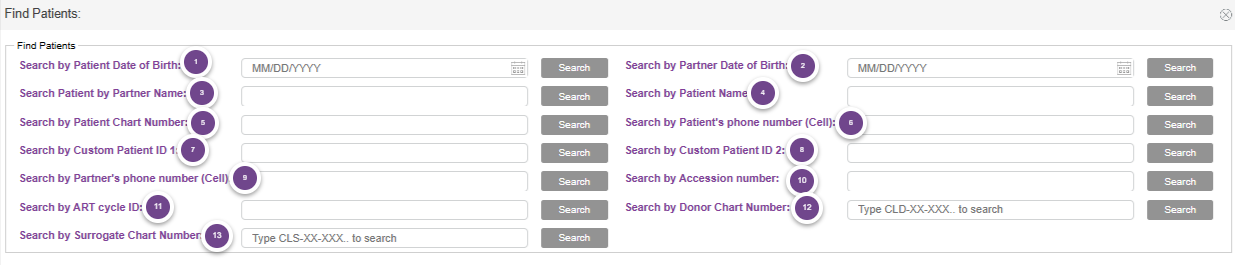
You may search for a patient using one of the following 13 methods:
- Patient Date of Birth
- Partner Date of Birth
- Partner Name
- Patient Name
- Patient Chart Number
- Patient Cell Phone Number
- Custom Patient ID 1
- Custom patient ID 2
- Partner's Cell Phone Number
- Accession Number
- ART cycle ID
- Donor Chart Number
- Surrogate Chart Number
Search by Patient/Partner Date of Birth

If you have a Date of Birth but don't have the patient or partner's name, you can enter the Date of Birth and click Search.
It may take a few seconds to search the database of patients before you see results.
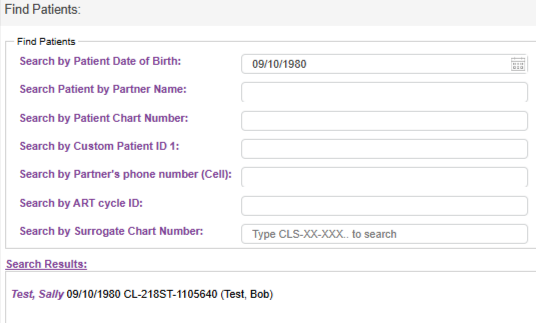
Under the Search Results, you will find the following information: Patient's name, date of birth, chart ID number and partner's name if applicable. Click on the patient's name to open the chart.
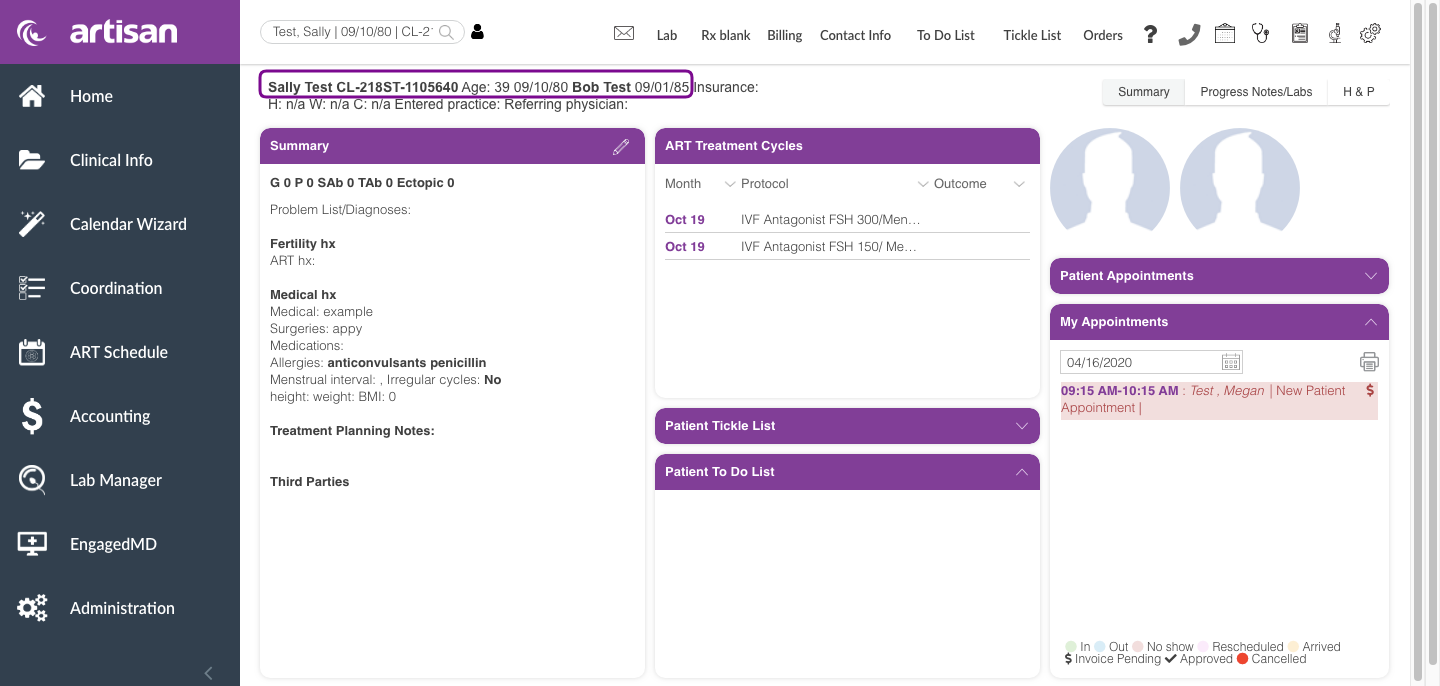
From within the patient's chart, it will always display the patient's name, chart ID, Date of Birth, Partner's name and DOB. If the patient is single, it will only display the patient's name, chart ID number, and date of birth.
Search Patient by Partner Name
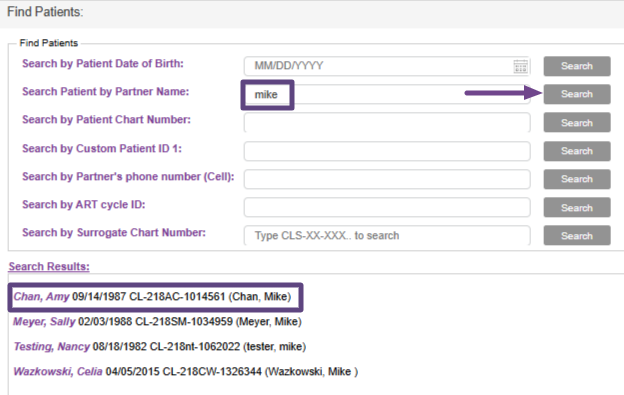
If you only know the partner's name, you can find the corresponding patient by searching the partner's name . Enter the Partner's Name and click Search. The search will find matching Partner names and the associated Patient name. Select the Patient's name to open the chart.
Search by Patient Name
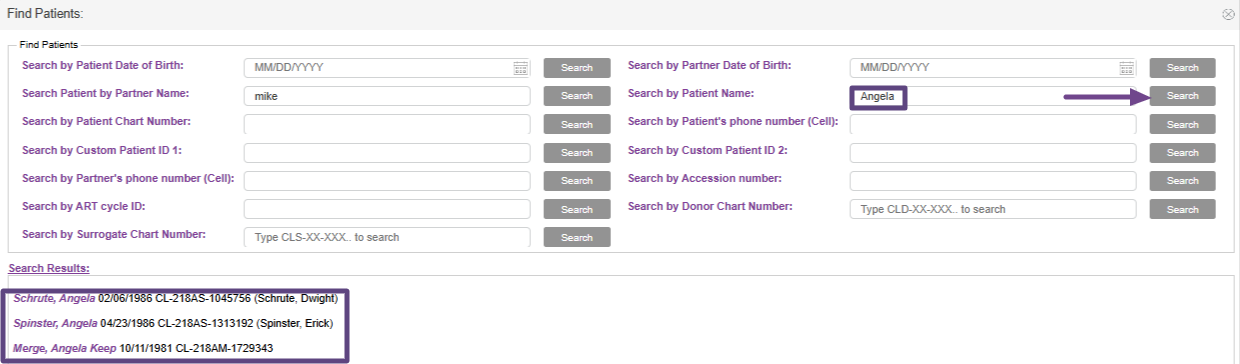
You may search by the Patient Name (even if you can only remember the patient's first name). The search will find matching Patient names and the associated partner's name. Select the Patient's name to open the chart.
Search by Patient Chart Number
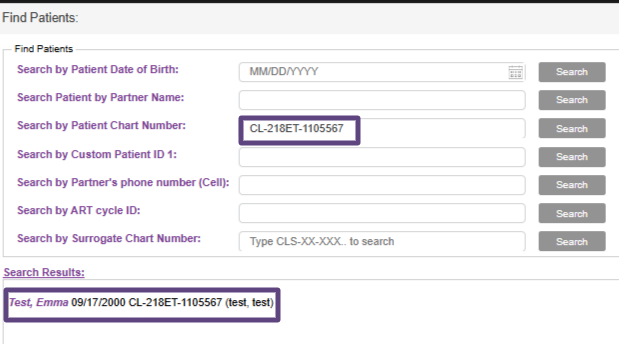
Enter the patient's Chart ID number then click Search. Search results will display the patient's name, Date of Birth and the Chart ID number. Click on the patient's name to view the chart.
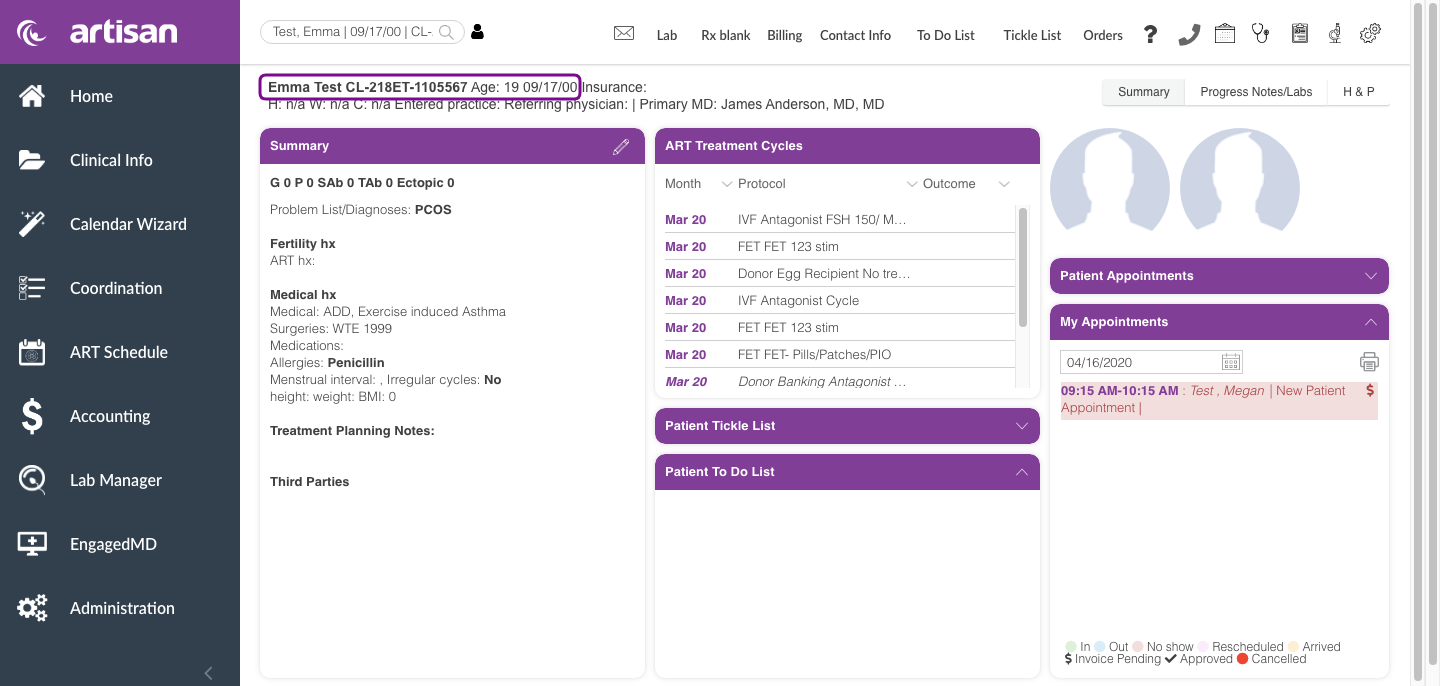
*This same method can be used to search by Patient/Partner phone number, Accession number, ART cycle ID and custom patient ID 1 and 2.
Search by Donor/Surrogate Chart Number
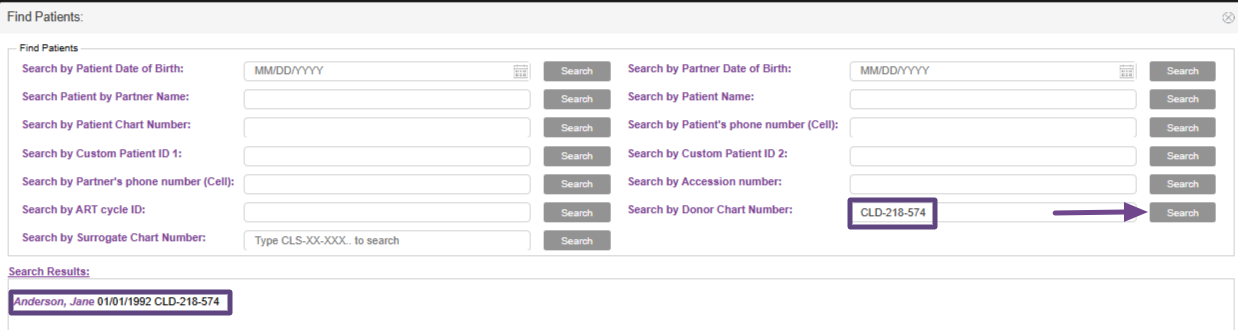
Enter the Donor's Chart ID number "CLD-218-574" and click Search. The system will search the Donor's Database. Click on the Donor's name.
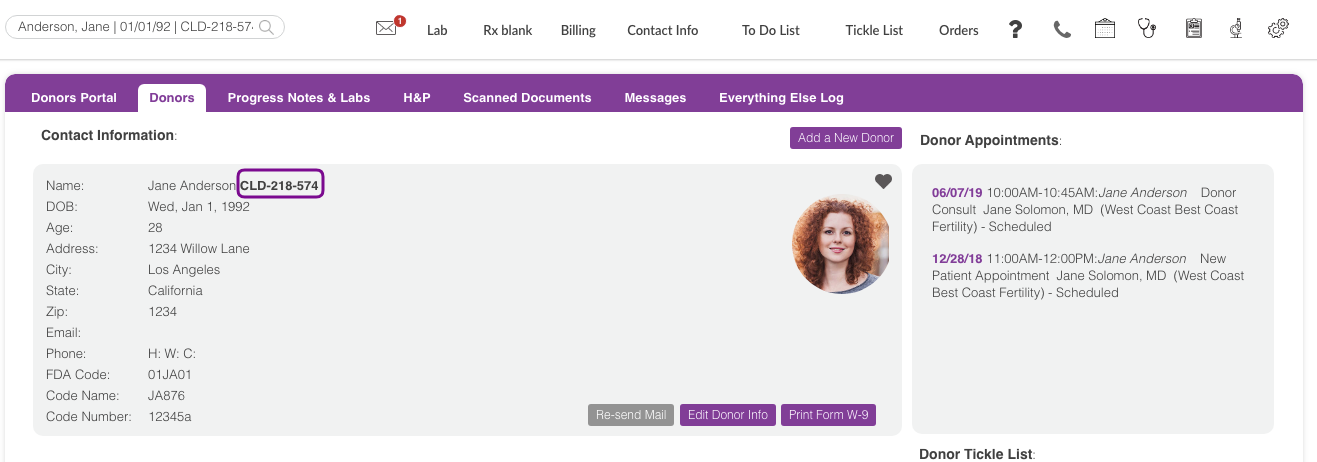
It will take you directly to the Donor's chart.
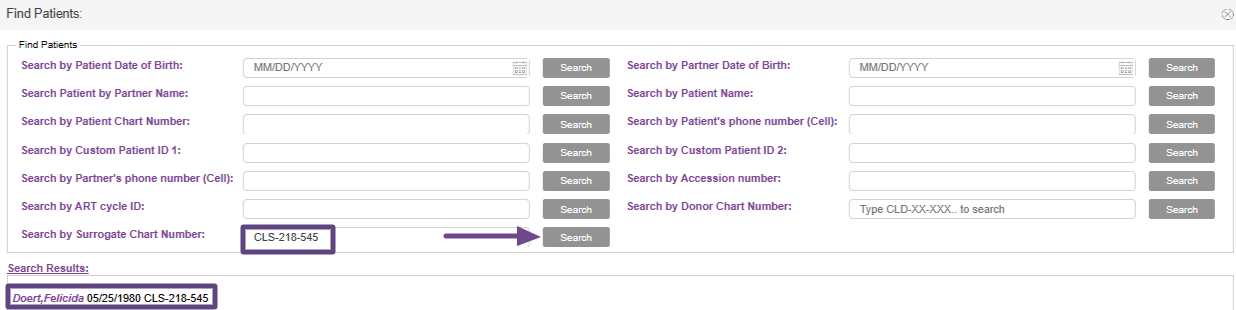
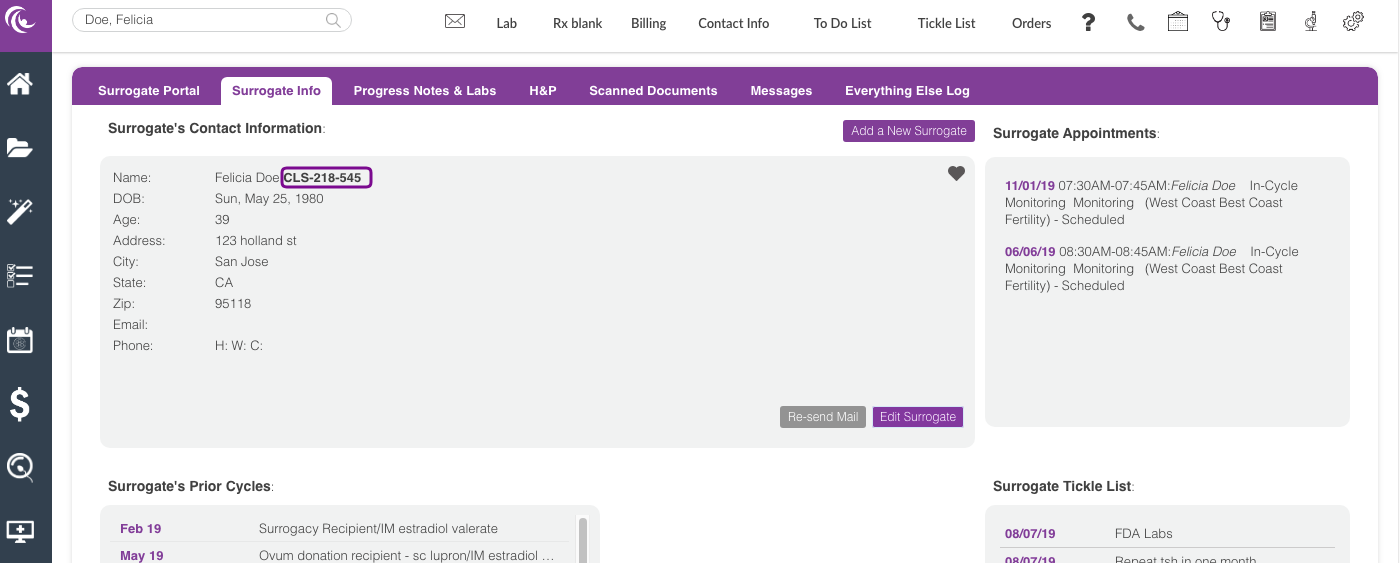
To search for Surrogate Chart Number, enter the Surrogate's Chart ID number (CLS-218-546). Select the Surrogate's name to open the Surrogate's Portal.

Click on Surrogate Info tab to view the chart.
Please note that this feature does not search for embryo donors.
**All manuals are compliant with HIPAA regulations. No patient information has been released. All screenshots above were taken from a test clinic with fake patient information.

