


 120
120
Introduction
The Manage Payer List is your library of payers that will feed the drop-down when entering the Payers onto the patient's account.
This feature allows you to select insurances that you commonly use so that you do not have to constantly scroll through the large list when you upload claims.
Navigation

Click the Gears icon in the top right, select EMR Settings then click Manage Payers.

From this screen, you can add, edit and delete payers from Artisan.
Add a new payer from Emdeon's (Claim MD's) list of insurance carriers

Click Add Payer (Select From Emdeon) to add payer from the Claim MD list to Artisan. The Claim MD Clearinghouse has a list of several thousand insurance payers that are available for upload.

Select one or more insurance payers by using the drop-down menu at the top. You are able to select more than one payer to add at a time. The number in the parentheses is the payer ID.

Once you have selected all of that payers you would like to add, click Add Payer(s) to add the selected payers to your Artisan list for use throughout the system.

They will now be in your list.
To delete click on the trash can icon and to edit click on the pencil icon.
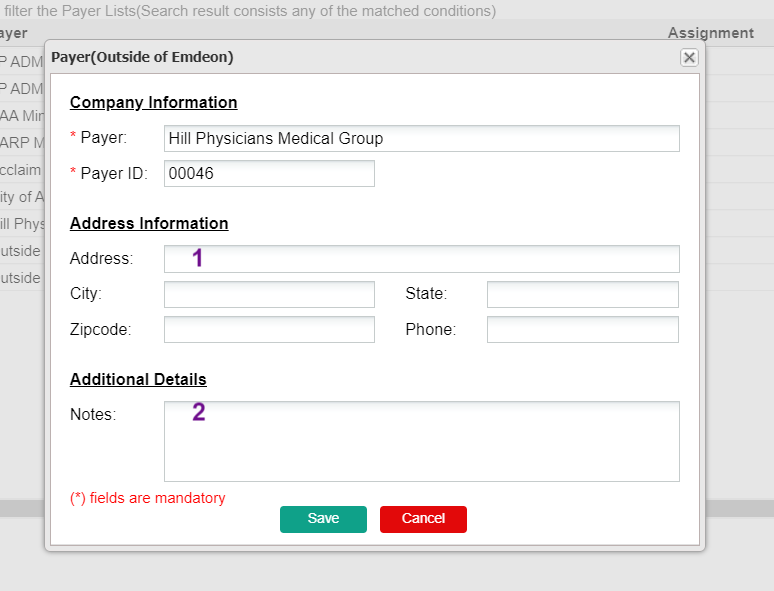
1. You do not need the address for uploading claims to Claim MD however we recommend filling in the Address fields in the event that you need to print and submit a paper claim.
2. Add any special notes for internal use about the payer in the Notes field.
Add a new payer that is not on Emdeon's (Claim MD's) list of insurance carriers
Occasionally you will have a small insurer that is not registered with Emdeon's service. You can still upload claims to these insurers by entering the Payer name and Payer ID into the system.

Click Add Payer (Outside of Emdeon) to add an insurance company not contained on the Claim MD list.

Fill in the Payer and Payer ID for the insurance company. Claim MD has the ability to print and mail claims sent electronically to them if the Payer ID of SPRNT is used.
Fill in the Address fields in the event that you need to print and submit a paper claim. Add any special notes for internal use about the payer in the Notes field.
Once you have filled all of the necessary fields, click Save to add the payer.

