


 161
161
Artisan has a feature in Contact Info that will allow users to pull the patient's preferred pharmacy from MDToolbox to a patient's account, allowing for easier and more efficient e-prescribing for physicians and clinical staff.
Preferred Pharmacy for Patients and Partners
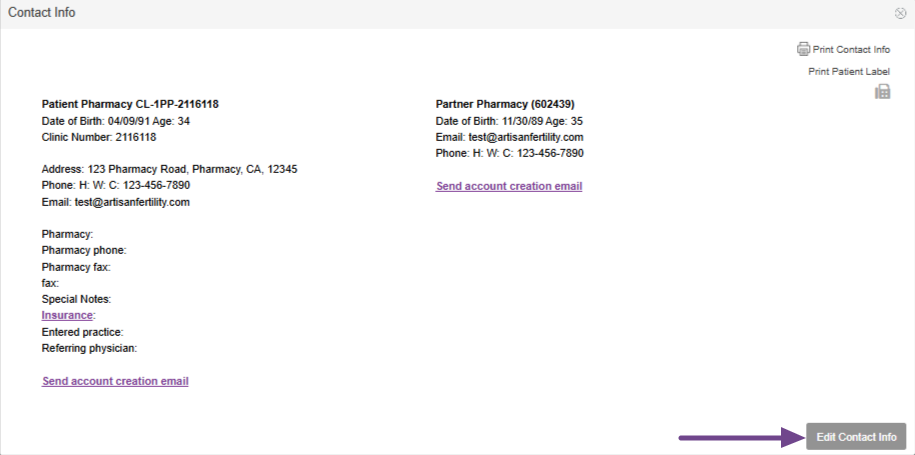
The preferred pharmacy for patients and partners can be added and/or updated from Edit Contact Info.
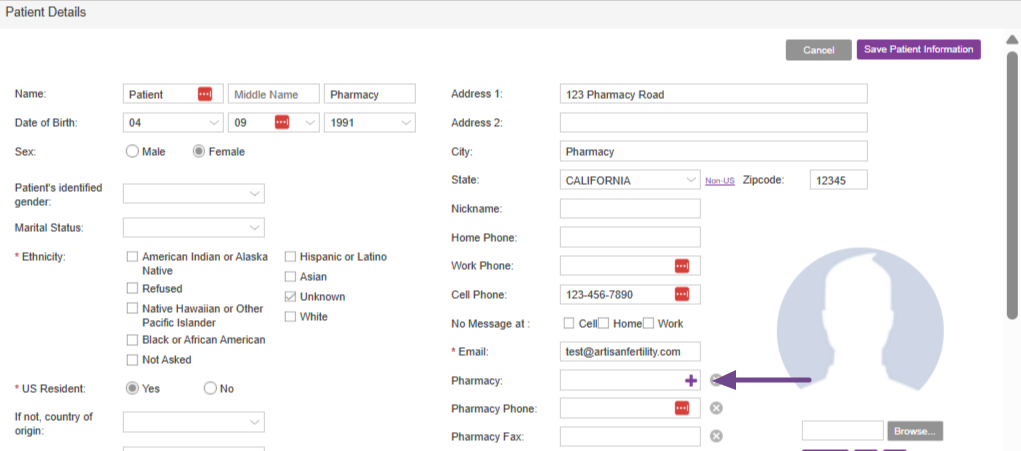
Click the purple + sign in the right side of the Pharmacy box.
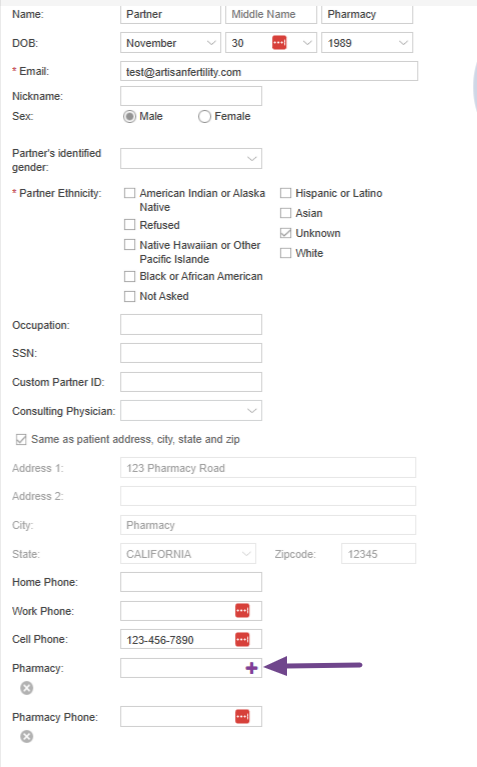
For the partner, you'll select the purple + in the right side of the Partner's Pharmacy field.
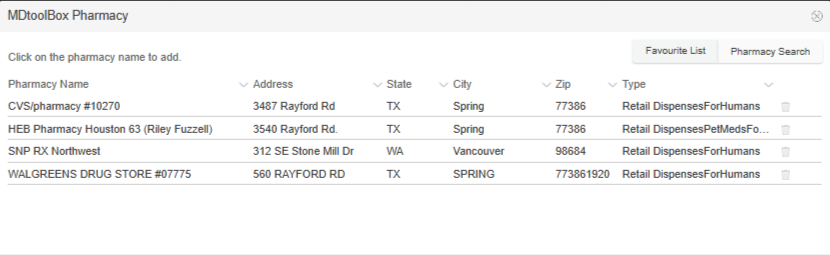
This will open the MDToolbox Pharmacy window where you can either select a pharmacy from your Favorites list, or find the pharmacy via a pharmacy search. When you have found the patient's preferred pharmacy, click on the name to select it.
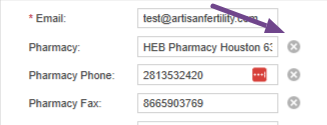
The pharmacy name, phone and fax number will pull into the designated fields. To remove the pharmacy and select a new one, you can select the X next to those fields and repeat the above steps.
Please note, you are still able to manually enter a pharmacy, but the manually entered pharmacy information will not pull to the pharmacy field on the prescription.
Using the Preferred Pharmacy in a Prescription
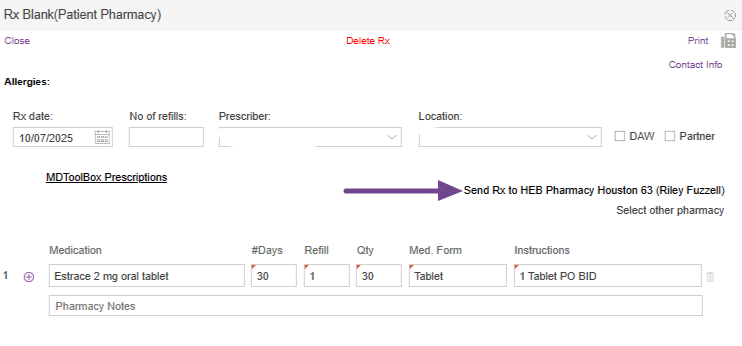
The pharmacy will auto-populate the preferred pharmacy from the patient's Contact Info. You will fill out the prescription as you normally would and click the Send button the preferred pharmacy. If you need to send the prescription to a different pharmacy, click on "Select other pharmacy" and select the pharmacy you would like to send the medication to. Once sent, you will select MDToolbox Prescriptions and send of the prescription as you normally would.
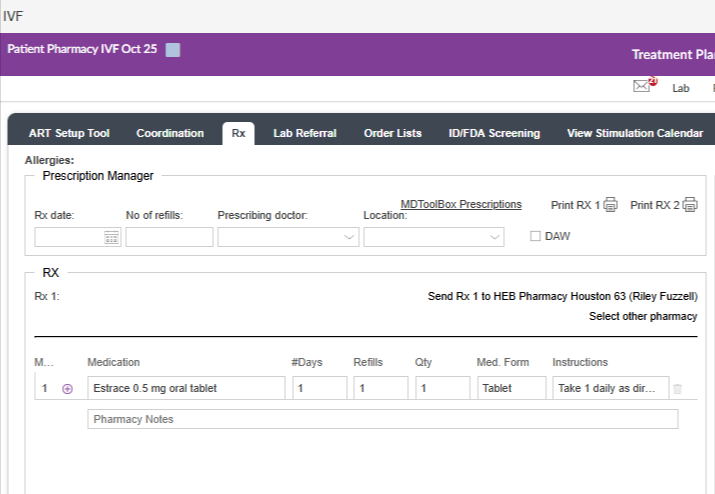
For ART Cycle RX, the preferred pharmacy will work exactly the same and will pull in to RX1 to RX5. You are able to select a different pharmacy using "select other pharmacy" if any of the prescriptions need to be sent to another pharmacy.
Preferred Pharmacy in Donor and Surrogate Accounts
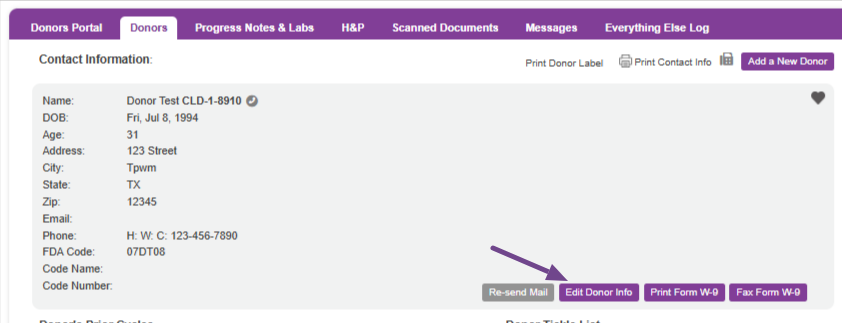
Within the third party account, select Edit Donor Info (Edit Surrogate Info if you are in a gestational carrier account).
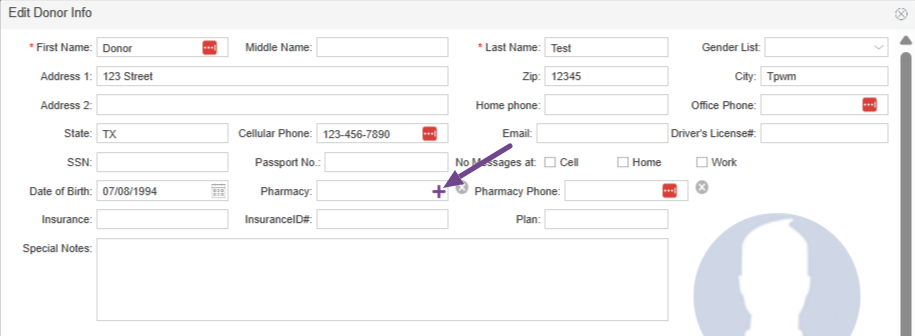
You'll click on the purple + sign and follow the same instructions that you would for patients.
**All manuals are compliant with HIPAA regulations. No patient information has been released. All screenshots above were taken from a test clinic with fake patient information.

