


 140
140
Typically, patients are entered directly into the EMR if they are already existing patients in your practice. For example, your practice is new to Artisan and you are entering all of your existing patients into your new EMR.
If the patient is new to the practice and they are scheduling a new appointment to be seen, the preferred way to enter the patient into the EMR would be through Prospective Patient. Please see the Manual How to Add a Prospective Patient for this workflow.
Navigation

You can add a new patient from any screen by clicking on the Admin Tools icon in the top right-hand corner then clicking Add Patient to EMR.
Entering a New Patient's Basic Information
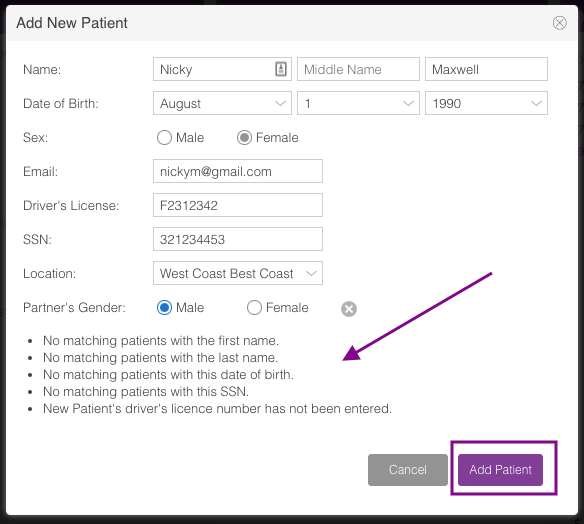
As you enter the patient's information into this form, it automatically checks for duplicate entries in the system. If the patient file you are trying to create already exists, click cancel. Once you are satisfied that the patient information is correct and that this is a unique entry, click the Add Patient button.
If the new patient does not have a partner, you can elect to not choose the Partner's Gender.

If you choose to leave the partner's gender blank, you will get this verification message asking you to confirm.
Entering a New Patient's Detailed Information
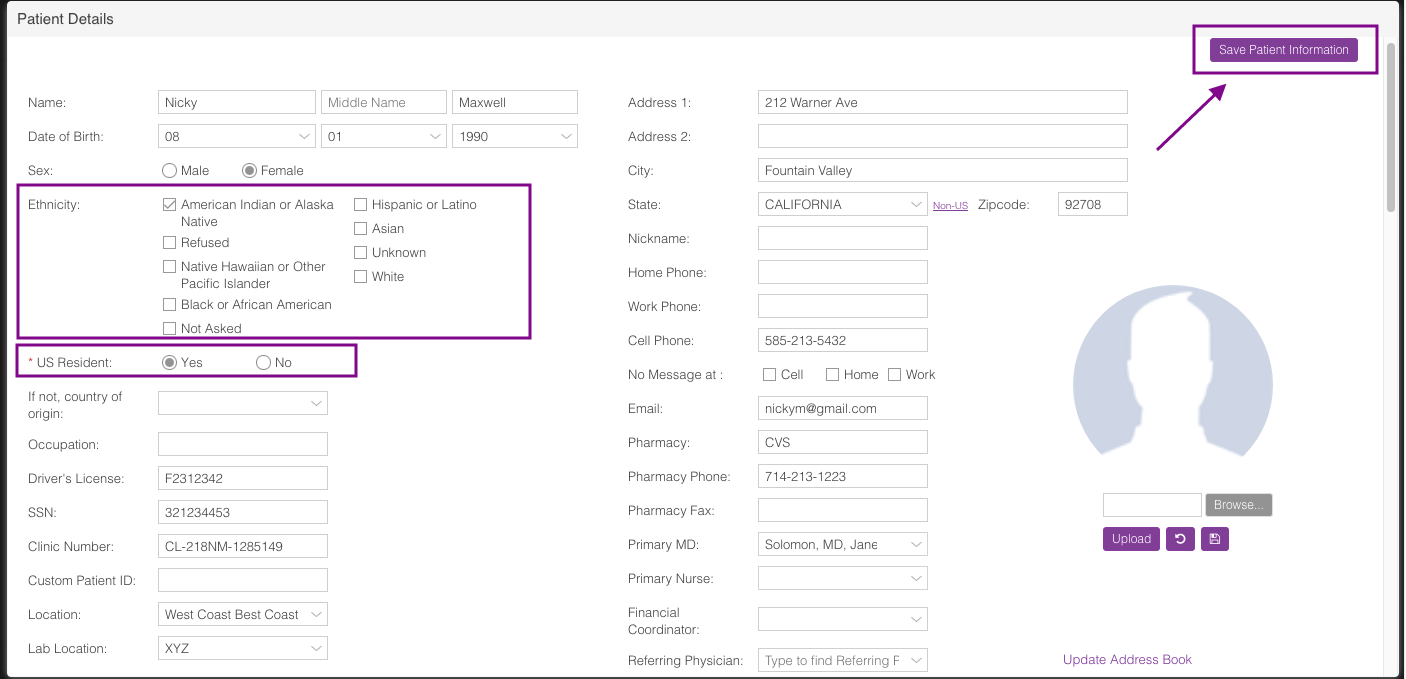
Once you click Add Patient it will bring you to the next screen where more detailed information can be entered. On this screen, you can add the patient's contact information, insurance information, and partner contact information. Once the information is filled out, click the Save Patient Information button in the top right corner.
Note: You may enter just the basic information upon account creation, and come back and fill in the rest of the fields at your convenience.
SART Note: SART requires information regarding patient ethnicity and US residency status. Please be careful to enter this information at registration - otherwise, the SART CORS database will reject your clinic's data submission.
Adding Partner Information

From the edit contact information scroll down to add a partner. Select the add new partner button to open the information window.

Enter the partner's demographic details. If there is an existing patient account that matches those details, it will show in a list below the partner demographic fields. If a listed account belongs to the partner, you can click on it to merge the account as a partner. If there are no matching accounts for the partner, select Add Partner and add the additional partner details to the account. Select partner ethnicity as this too will be reported to SART. After all applicable fields are entered, save partner information.
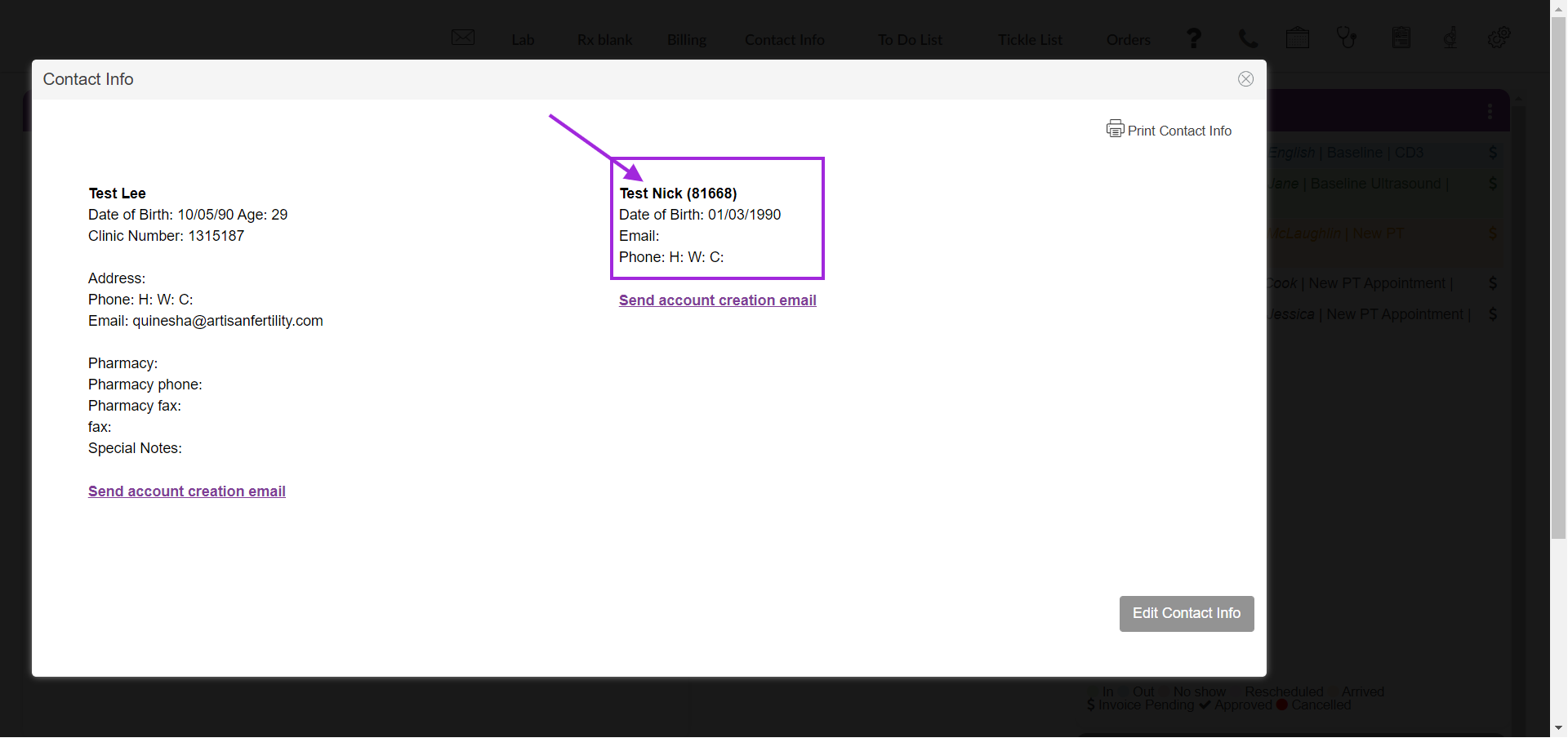
Once the partner has been saved to the patient chart. The partner will display alongside the patient in the contact information tab.
End Relationship
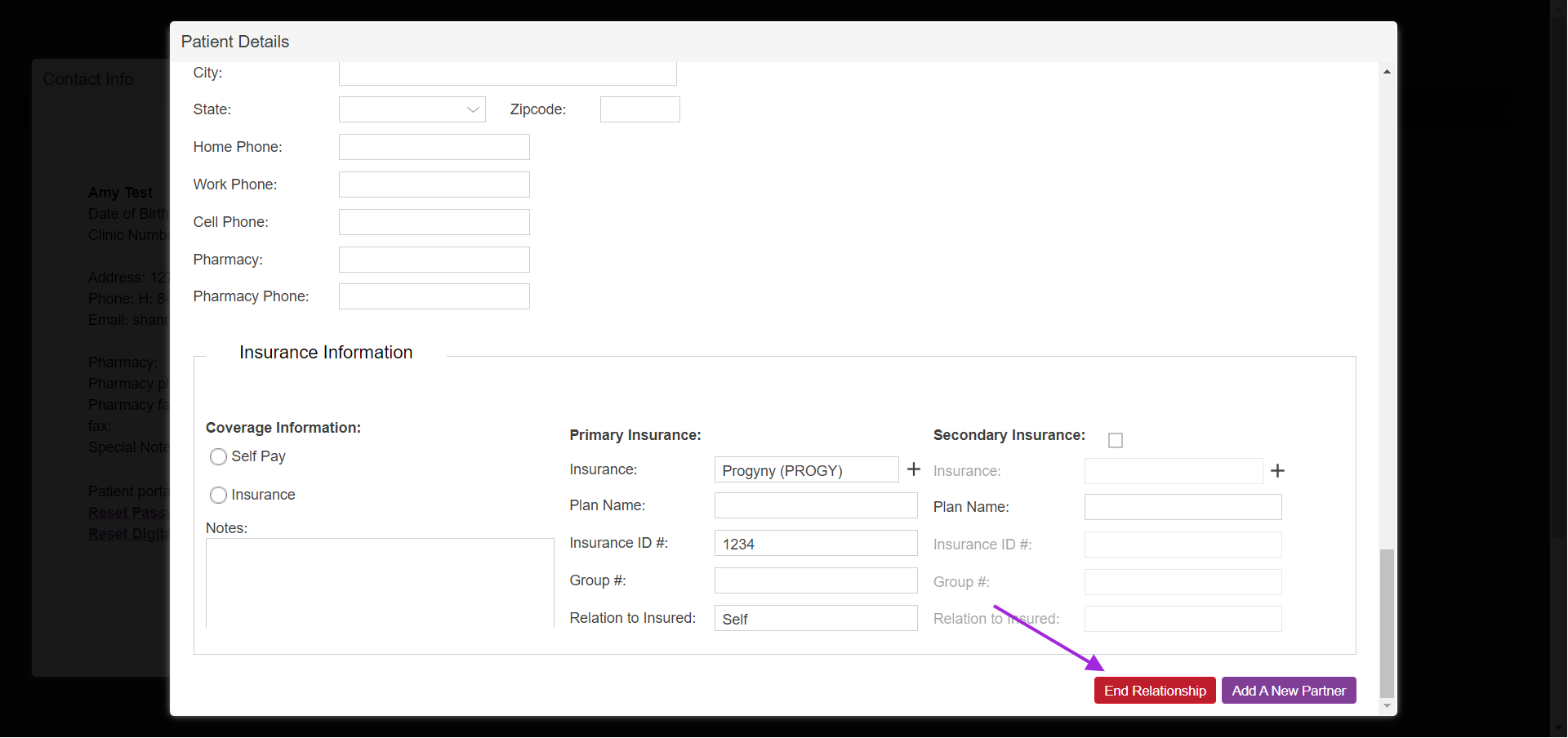
Select End Relationship to remove the partner from the patient's chart.
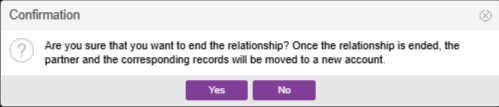
Once you select end relationship a verification window will pop up asking for you to confirm your selection. Once you confirm that you would like to end the relationship, the partner and their records will be moved to a separate patient account.
**All manuals are compliant with HIPAA regulations. No patient information has been released. All screenshots above were taken from a test clinic with fake patient information.

