


 169
169
Every user of the system has the ability to update their password and digital signature once they have signed in. Our recommendation is to change both your password and digital signature upon the first time signing into Artisan.
Changing Password

To change your password in Artisan, go to the Gear setting and select Change My Password.
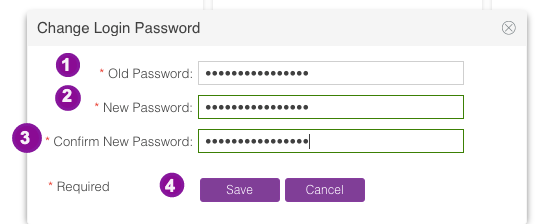
1. Enter your Old Password
2. Enter your New Password
3. Confirm your New Password
4. Click Save

You will get a pop up confirming that your Login Password has been changed.
Changing Digital Signature
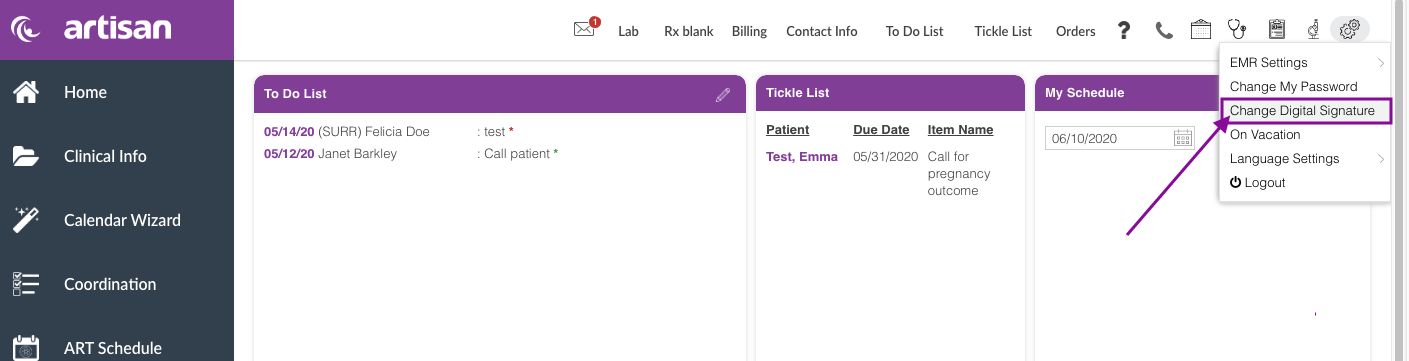
To change your digital signature in Artisan, go to the Gear setting and select Change My Digital Signature.

1. Enter your New Digital Signature
2. Confirm your New Digital Signature
3. Click Save

You will get a pop up confirming that your Digital Signature has been changed.

