


Telemedicine
Setting up Telemedicine Appointment Types
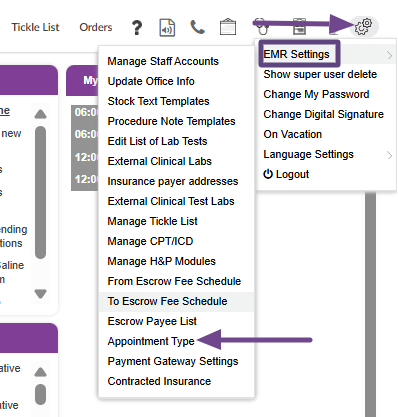
You will need to enable Telemedicine on the associated Appointment Types. Go to System Settings>EMR Settings>Appointment Types.

Select the Pencil icon to the right of the appointment type on which you would like to enable Telehealth.
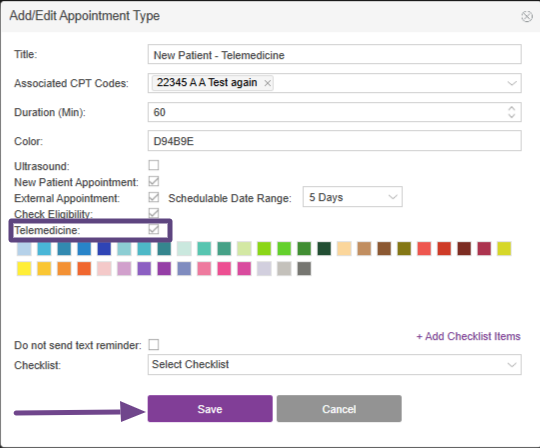
Select the checkbox next to Telemedicine and click Save. The telephone icon to initiate Telehealth calls will now show on all appointments associated with the Appointment Type.
Telemedicine instructions
-
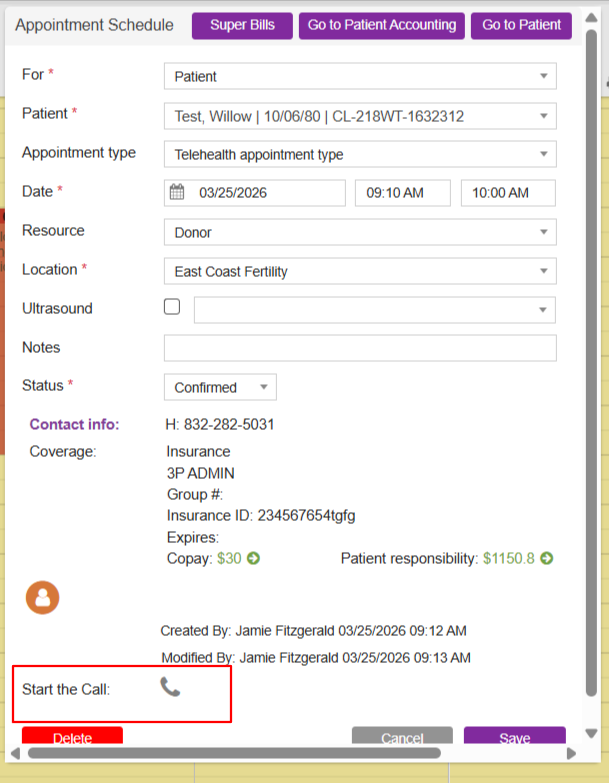
A telemedicine appointment can be scheduled via the appointments calendar
-
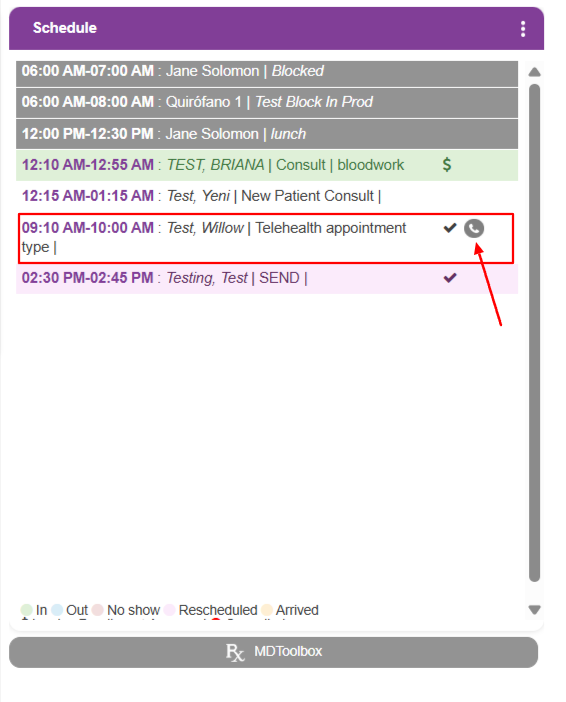
A telemedicine call can be initiated via the appointments calendar, schedule on the user’s home screen, or the patient/donor/surrogate chart

-
Once a call is initiated on the clinic end, the client will be able to visualize if the other party is ‘Online’ or ‘Offline’. This signifies that the patient is logged into the app. “Status” describes if the patient is currently in the waiting room, awaiting the physician to join the call.
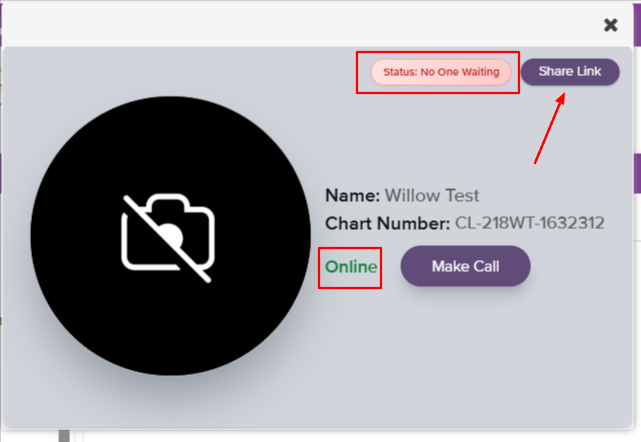
-
From the initiation window, they can send a message to the other party regarding meeting details via “Share Link” and/or begin the call. The message is received in the patient’s portal. The clinical member can also confirm that this message has been sent via ‘View IMs’
-
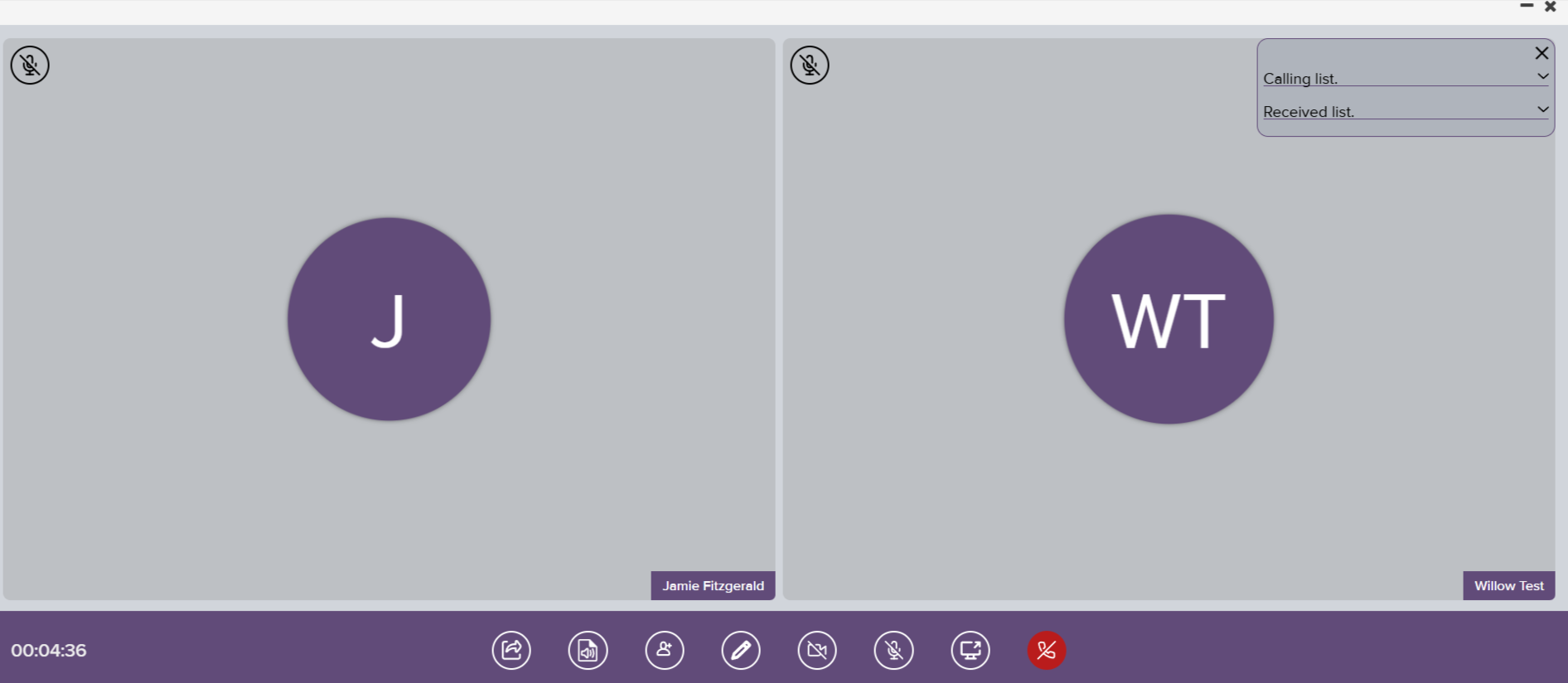
Once the client and patient(s) have joined the call, the client will have the following view:
-
The bottom of the clinical screen contains the following:

-
Share link (will send a message and link to participant)
-
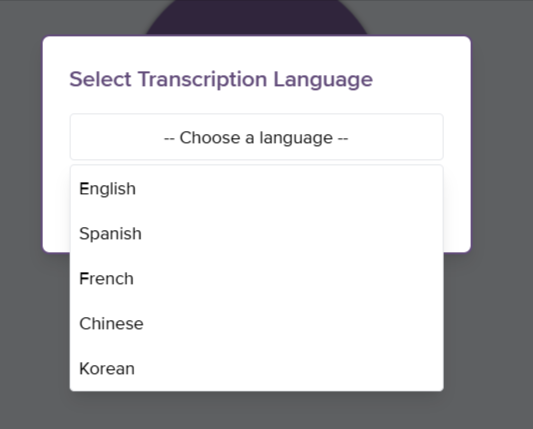
Start Transcription
a.
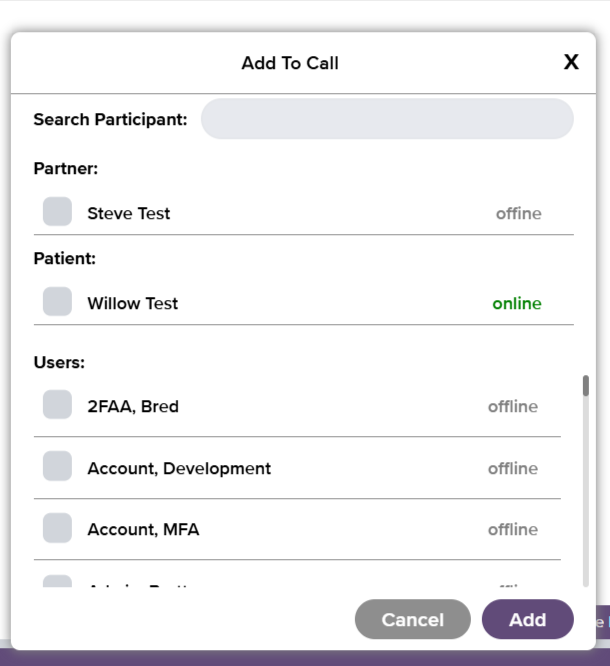
3. Add Participant- To add participant, select in the empty checkbox to the left of the participant you’d like to add and then select ‘Add’.
4.Whiteboard
5.Turn on/off camera
6.Turn on/off microphone
7. Share screen
8. End call
Patient Waiting Room:
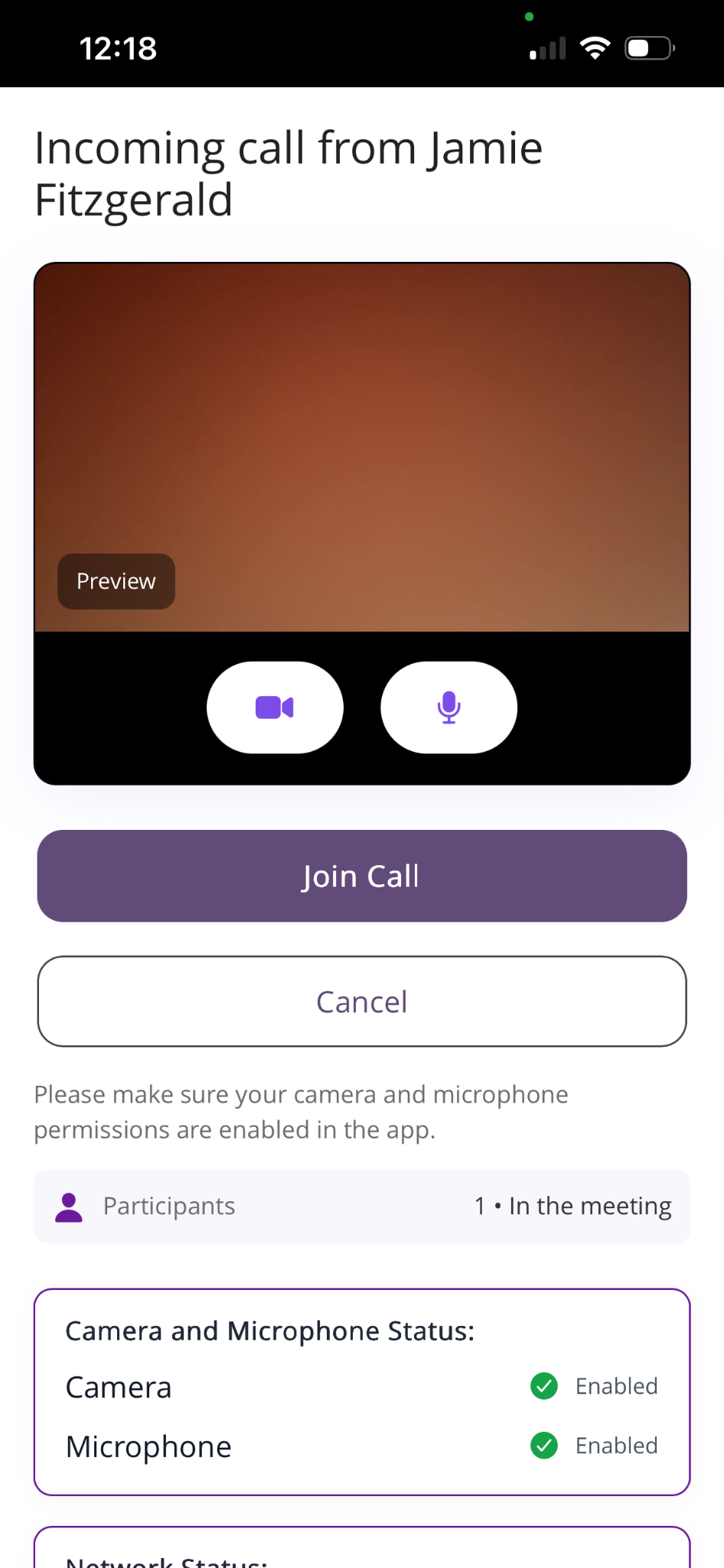
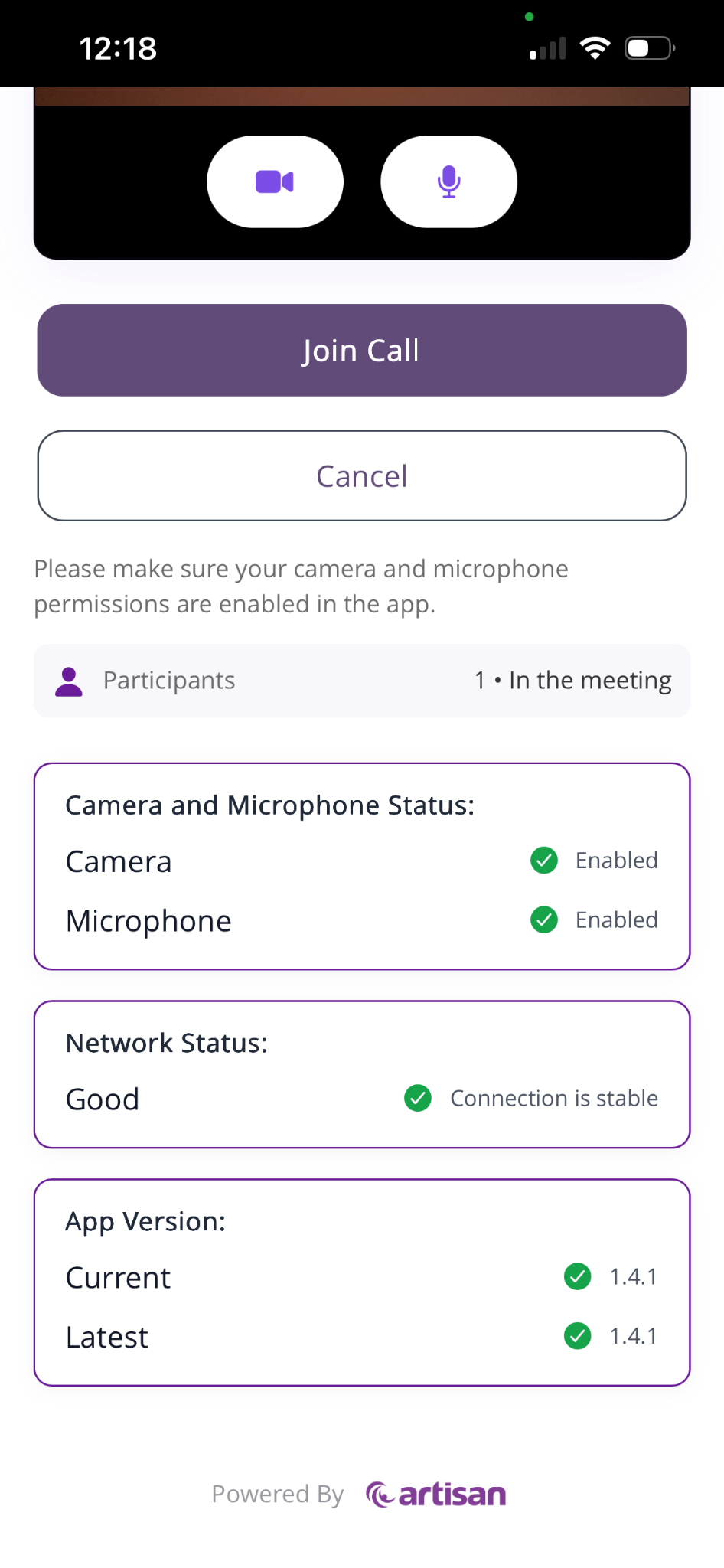
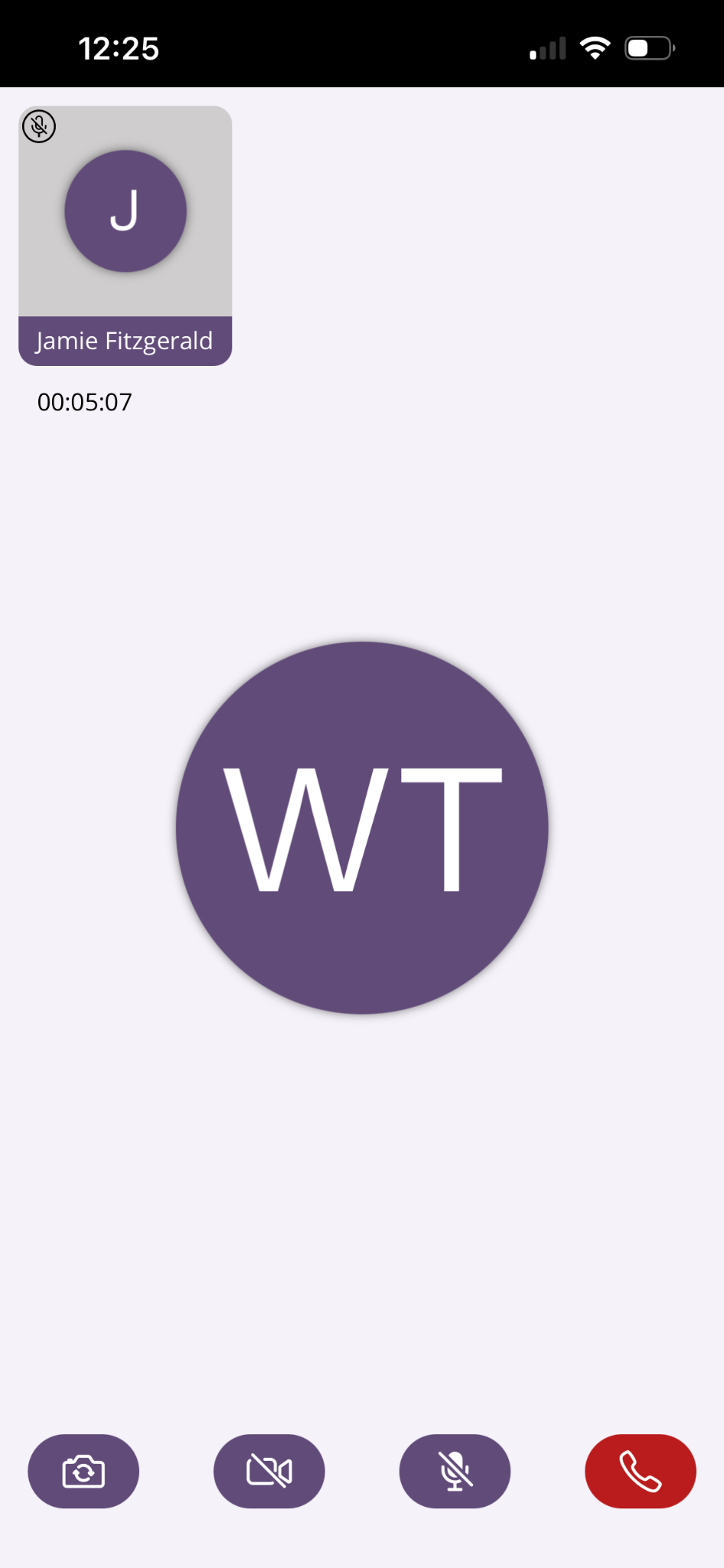
-
The patient can join the call, cancel, and visualize if the provider is present in the waiting room. They can also check that their microphone and camera are enabled, network status, and that their device is running on the most up to date version of the Artisan Ally app. When the patient is in the waiting room, the call will automatically connect once the provider initiates it from Artisan.
-
If the patient does not have the waiting room open, the telehealth meeting will present as a call from the app or the web portal that the patient can answer and connect to.
**All manuals are compliant with HIPAA regulations. No patient information has been released. All screenshots above were taken from a test clinic with fake patient information.**

