


 47
47
Artisan is a complex, high performing website. If you don't have a current version of a good web browser then you WILL HAVE PROBLEMS. Old web browsers cannot support the modern code we use to bring the Artisan user experience.
Your first step for using Artisan is to install a copy of the Chrome web browser made by Google. Chrome has a reputation for being the fastest and best web browser available. Chrome is required for users that wish to employ Dragon Dictation directly into their progress notes and other parts of the system.
Note: Please do not use Google Chrome for surfing the web or any other purpose. Reserve Chrome only for use with Artisan for patient care. Websites store information called cookies in your browser's memory. There is a possibility that cookies from other sites may affect the performance of Artisan. It is a good practice to use another web browser for your every day computer use and save Chrome for patient care.
How to install Chrome
Follow this link to download and install Google Chrome: https://www.google.com/chrome

Click Download now. Follow the instructions to install Chrome on your computer.
Access the Artisan EMR
Go to our website at www.artisancw.com. This will pull up the Login Screen

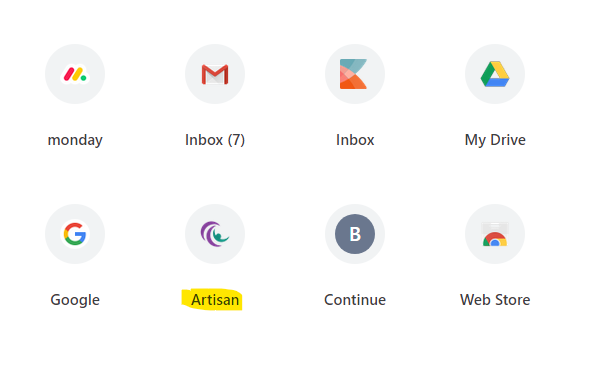
It is a good idea to bookmark the site so that you don't have to enter the address each time.

Enter your Username and Password then click Login.

Next you will be taken to a second screen where you will enter your Digital Signature. Click Verify and you will be taken to your Home Page.
About Your Digital Signature
The Sign In screen is the only place that you will use your Login Password.
Once you get into Artisan you will have numerous opportunities to use your Digital Signature. This includes signing progress notes and operative reports.
Perhaps the most common place that you will use your Digital Signature is the "Privacy Screen". This pop-up covers your screen if you have been away from your computer for 15 minutes.
To close the Privacy Screen and return to work just enter your Digital Signature.
Incognito Window
Artisan works best when you have one Artisan open on your browser at a time. However, you are able to open an Incognito Window in Google Chrome which will allow you to have a second screen of Artisan open. Artisan will still save and work the same for you.
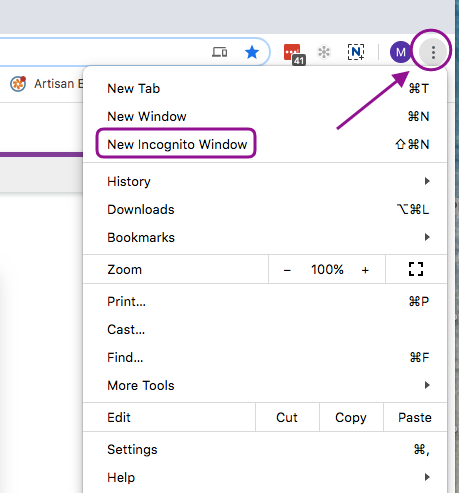
To open an incognito window, click on the three dots or elliptical icon on the top right of chrome. The third option down is to open an incognito window. When you click on it, you will be brought to another chrome window and you can open Artisan from there.
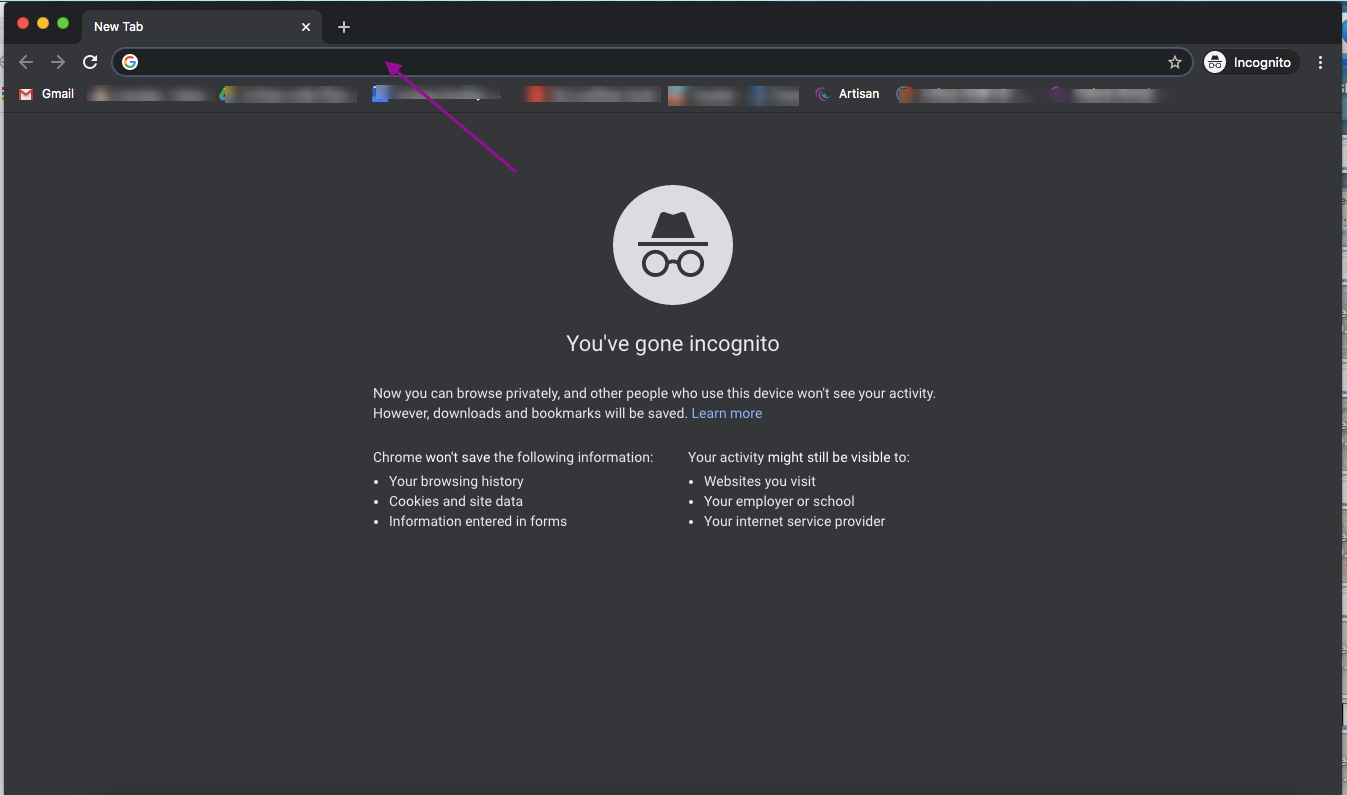
You will now be able to go back and forth between the two open Artisans.

