


 76
76
All of the financial reports in Artisan may be exported to excel for further data manipulation.
Navigation
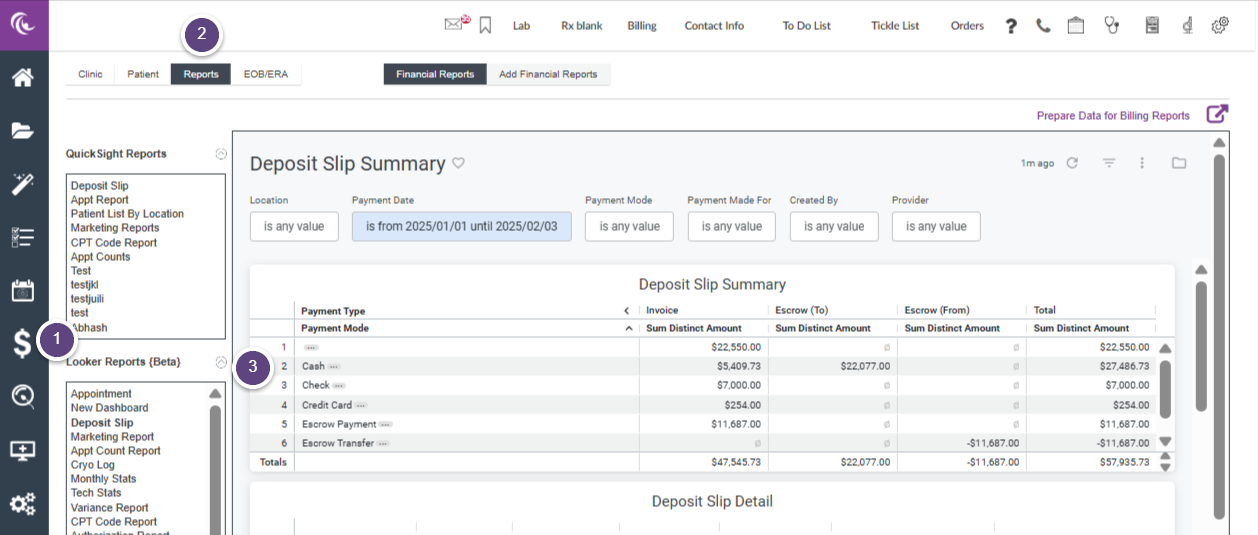

- Click on the Accounting ($) tab
- Click on the Reports tab.
- Select the report from the Looker Reports list. In this image we have opened the Deposit Slip report


Once you have selected your report (in this example we have selected the Deposit Slip) and you have entered the filtering information, such as date range, created by, etc:
- Click on the 3 vertical dots in the top right-hand corner of the report data.
- Select Download Data.
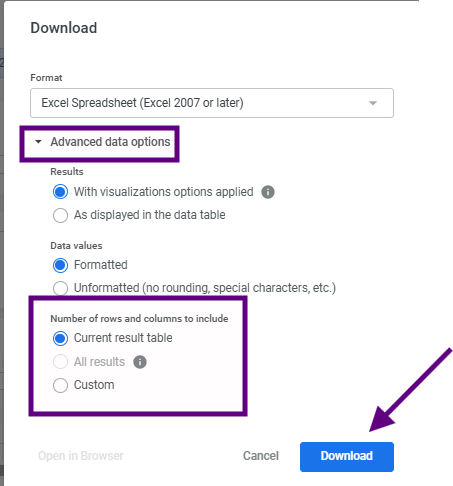
Select the format you would like to download the data in and select the Advanced dropdown. Select the number of rows and columns to include and select Download.
Please note, you will need to select All Results if you would like to download the full report.
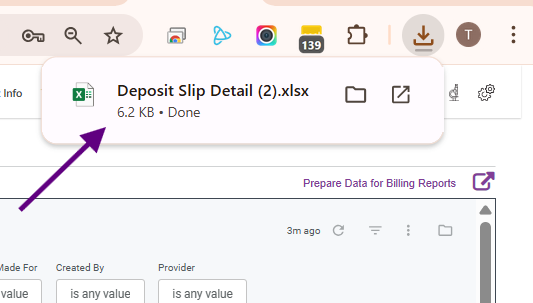
You will get a notification of the downloaded report.

This is how the excel spreadsheet will look when opened.
**All manuals are compliant with HIPAA regulations. No patient information has been released. All screenshots above were taken from a test clinic with fake patient information.

