


 97
97
Not all staff members prefer to communicate via Instant Message. There is a simple system to manage IM recipients.
Additionally, practice manager/administrator may temporarily turn off IM while a staff member is on vacation or otherwise away from the office.
Enable/Disable IM for Users
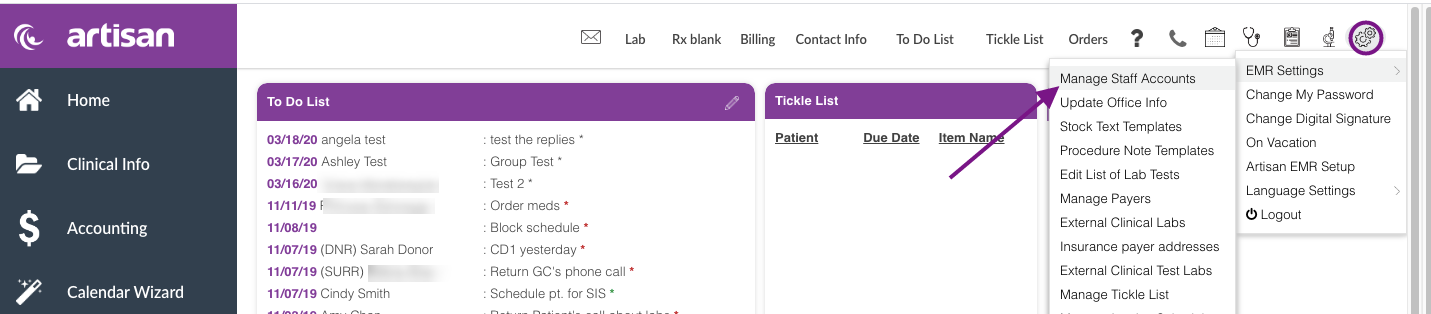
Click on the Gears icon, scroll over, EMR Settings and open Manage Staff Accounts.
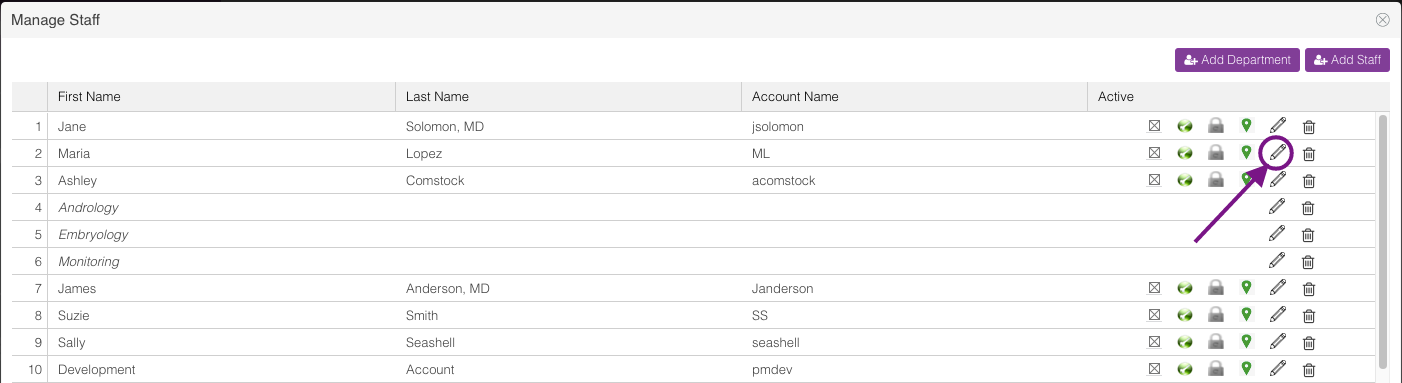
Open a specific user to update settings by clicking the pencil icon.
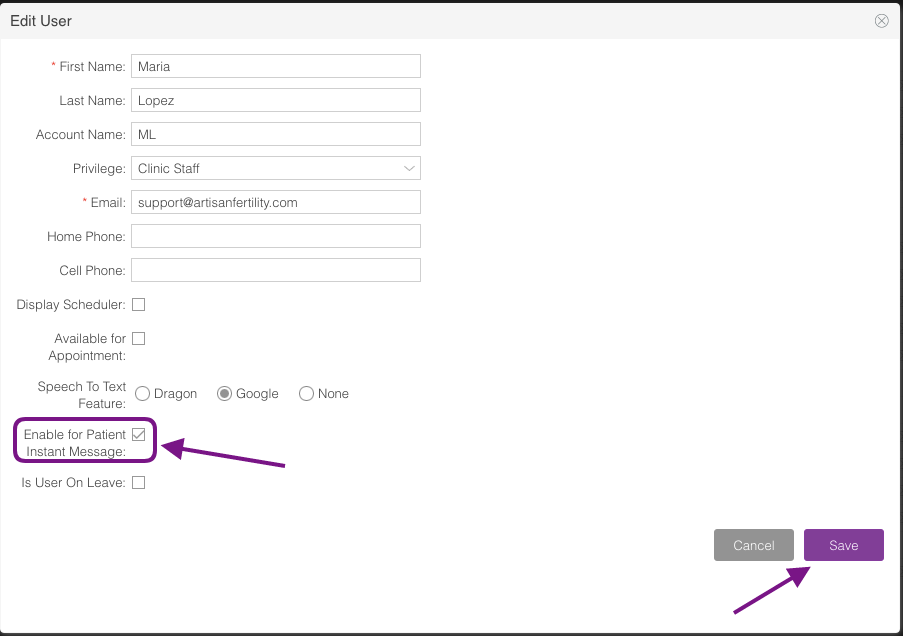
Click/unclick Enable for Patient Instant Message to turn IM on or off for the user. Then click the Save button. Messaging is enabled when the box is checked. It is disabled when the box is not checked.
Temporarily Disable IM for Vacation
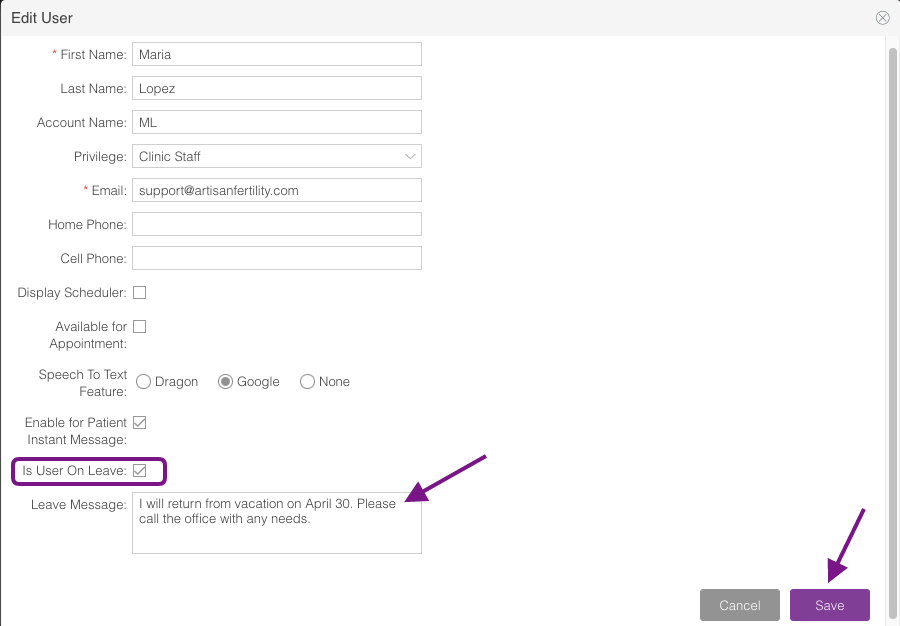
Click Is User On Leave to disable IM for the user.
A dialog box will open where a message may be left informing patients when the user will be available. Then click Save.
Please note: while the user is on leave there is not a system for notifying other staff of patient IMs. It is recommended that the message include how to reach the office or inform them to send a message to the covering staff member.

